现场运营
GitHub
Field Operations is a construction field-operations workspace: schedule a site job, dispatch a contractor, track on-site progress, raise scope-change requests, and collect photographic evidence whose integrity is checked mechanically. It is deliberately focused — it does not attempt project costing, payroll, or portfolio management, and the platform's native approval system owns the variation approval lifecycle.
The problem: field-service work needs the right people at the right site on the right day, and the evidence that the work happened needs to be trustworthy. A photo of a job site is not proof by itself — the same photo can be reused, a photo can be taken somewhere else, and a photo says nothing about which site it shows unless the site's identity is readable in it.
Field Operations answers with a dispatch pipeline (site → job → contractor) followed by an evidence pipeline (per-photo integrity checks, geolocation, and a bounded AI suspicion review whose findings a controller resolves).
Apps and roles
| App | Audience | What it provides |
|---|---|---|
field_ops_controller |
Dispatch / operations staff (the BCA controller dashboard) | A dated dispatch schedule as a status kanban beside a site map, the suspect-scrutiny panel, a job-assignment CSV import, and a sites tab. |
field_ops_contractor |
Field contractor | One table of its own assignments: job · site · scheduled date · status (plus the contractor for dispatchers). Opening a row shows the job scope, progress, dispatch time, location, assignment activity, variations, and evidence photos. |
Flag visibility is reserved for the controller dashboard: photo integrity flags, the review ledger and every suspicion-log field render only for controllers. Contractors see their own assignment's progress and their evidence photos — never the integrity results.
The controller reads assignments, people, sites and open suspicion logs directly from the sync-backed collections. Its board cards and map points are local projections of those rows, so they stay live without a remote query handler or refresh control.
Teams (src/access_control/team/+team.ts): Field Operations Controllers and Contractor
(Controller) hold field_ops_controller; Contractor holds field_ops_contractor. A contractor
is a role, not a record: a user whose team holds field_ops_contractor.
| Policy | What it grants |
|---|---|
field_ops_controller |
Full command of the operational records and both apps; the audit ledgers (communications, reviews, suspicion logs) are append-only. |
field_ops_contractor |
Requestor-scoped grants: assigned sites and their dispatched jobs; own assignments (read + scoped update, assignee_user_id = actor.id); own variations (read + opt-in source approval for create/update proposals); own evidence (read + create). |
field_ops_whatsapp |
The WhatsApp envoy's declared policy: read assignments; update status, completion and summary on any one; file new photo and message rows under it. This policy grants no other writes, deletes, evidence or log reads, reviews, suspicion data or apps. |
suspicion_review_automation |
The review automation's authority: the photo corpus it inspects (facts for an uninspected photo, or a scene backfilled on a hashed photo without one), append-only review records and suspicion logs, and the single suspicion_checked_at stamp that closes the review. |
Operating walkthrough
The paths below are relative to the workspace. For example, a hosted workspace prefixes
/app/field_ops_controller/dispatch with its workspace handle. Opening a record adds
?record=<collection>/<id> to the current page; new opens a creation form. Closing the record
returns to the surrounding board or table.
| Flow | Who operates it | Entry and outcome |
|---|---|---|
| Prepare people | Administrator | Settings → People: admit active members and choose their source team; save a mobile number for WhatsApp. |
| File a site and job | Controller | Sites → New or Dispatched jobs → New: locate the site, then create the dated assignment. |
| Dispatch and progress | Controller, then contractor | Dispatch schedule and the job's Progress section: assign the contractor, report work, and complete it. |
| Import dispatch work | Controller | Dispatch schedule → Import: validate a CSV/XLSX and file each new work order once. |
| Request a variation | Contractor, then controller | Variation record and Approvals: submit a scope change, review it, and approve, return or reject it. |
| File and inspect evidence | Contractor, Envoy and controller | Photo record or WhatsApp report, then the job's Conversation and Suspicion logs tabs. |
| Review and resolve | Controller | Suspicion review, then Resolve: inspect the evidence basis and record the controller's conclusion. |
| Hand over sites | Controller | Sites → Site handover: download the selected sites' JSON and CSV outputs from the automation run. |
| Configure the Envoy | Administrator | System → Integrations: connect WhatsApp, select the deployed Envoy, and inspect its messages. |
1. Prepare the people who dispatch and carry out work
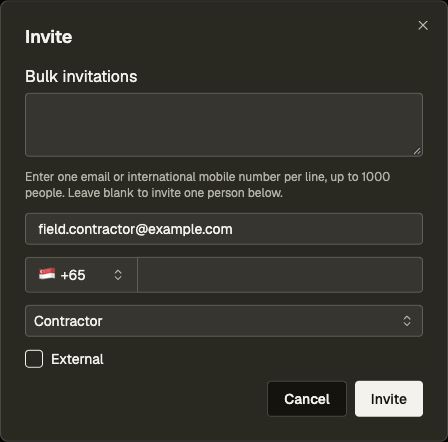
An administrator opens Settings → People (/settings/people), invites the member by email or
international mobile number, and selects an existing team. Use Field Operations Controllers
for dispatchers and variation approvers, Contractor for field staff who should see only their
own work, or Contractor (Controller) when the person also dispatches the workspace. Keep the
member Active. Team definitions and approval routes come from source; People assigns those
roles to people.
For WhatsApp, open the member, enter their Mobile number in international format, and press Save. The sender's number must match this active account. A contractor is assigned by that workspace member identity, rather than by a separate contractor record or a display name.
2. Locate a site and file its first assignment
A controller opens Dispatch → Sites (/app/field_ops_controller/sites) and chooses New.
Set Location (required), using an address search, a map pin, coordinates or the device's
location. Add Unit number (optional) when the work is at a particular unit. The saved site
title comes from the selected location; the unit distinguishes work at that location. There is
no second address to type. Client / tenant, Site type, Floor area (sqm) and a
dispatch-system site code are optional. Saving the same address/unit twice is refused rather
than producing another site.
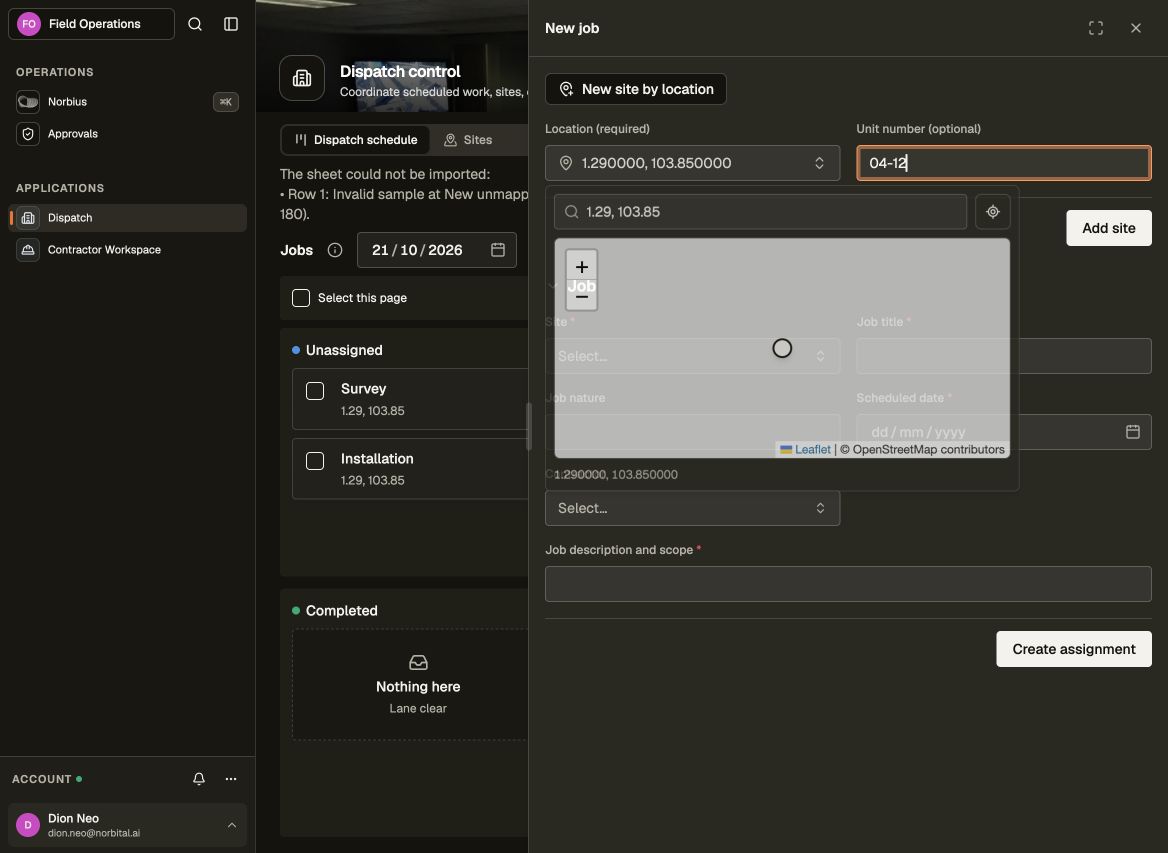
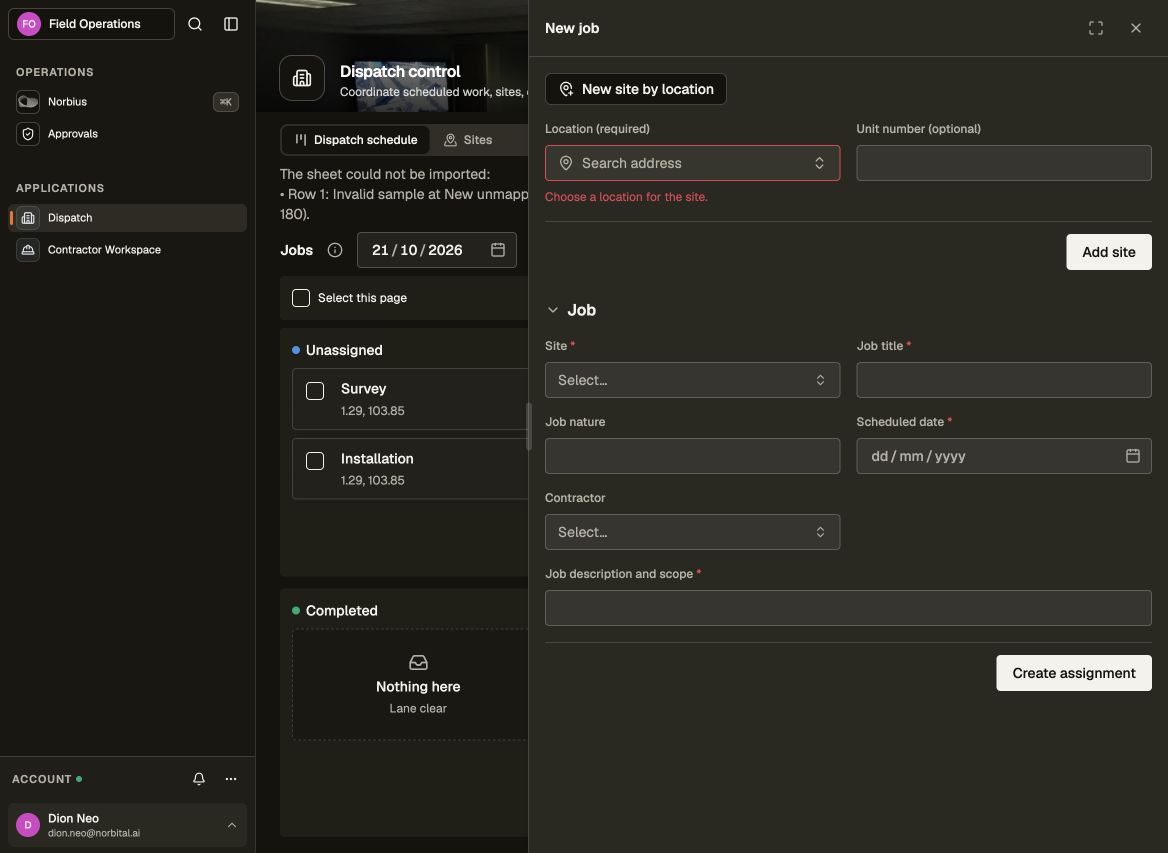
Open Contractor Workspace → Dispatched jobs (/app/field_ops_contractor/jobs) as a controller
and choose New. Supply Site, Job title, Scheduled date, and Job description and
scope; Job nature and Contractor are optional. New site by location can create
the location and unit first, using Add site, without leaving the assignment form. Select that
site and choose Create assignment.
With no contractor, the new work order is Unassigned. Selecting a contractor during creation files it Assigned and records Dispatched at. The scheduled date is a Singapore work day; it is separate from the instant at which dispatch happens.
3. Dispatch the day and report progress
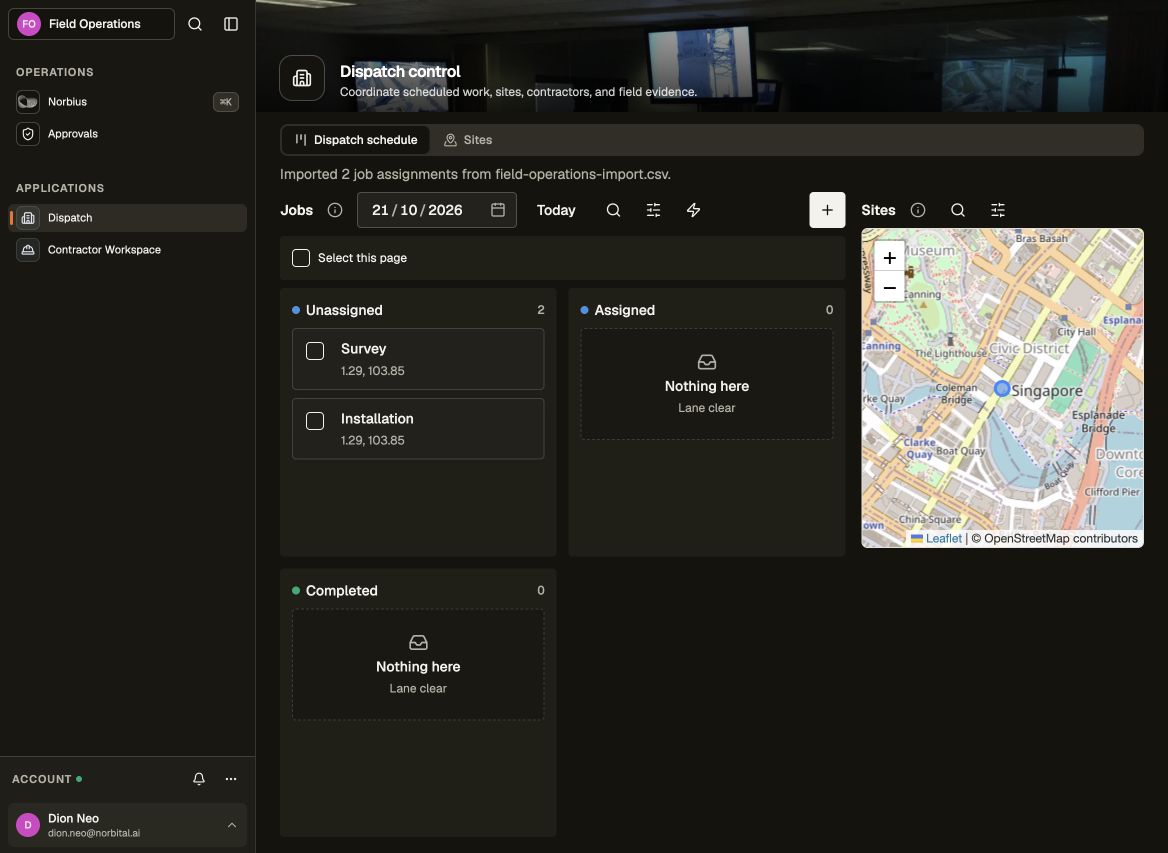
The controller opens Dispatch → Dispatch schedule
(/app/field_ops_controller/dispatch). Choose the dispatch date or Today. The date remains
in ?day=YYYY-MM-DD while opening records. The board groups that day's work into Unassigned,
Assigned and Completed, beside a map of its mapped sites. An empty day has an empty board
and map message; it does not move older unfinished work into today's schedule.
Open an unassigned job and choose Edit. In Progress, select Contractor and set Status to Assigned, then save. Assigning an existing job records its first dispatch time; changing the contractor alone does not change an already stored status. A controller can reassign work from this same section.
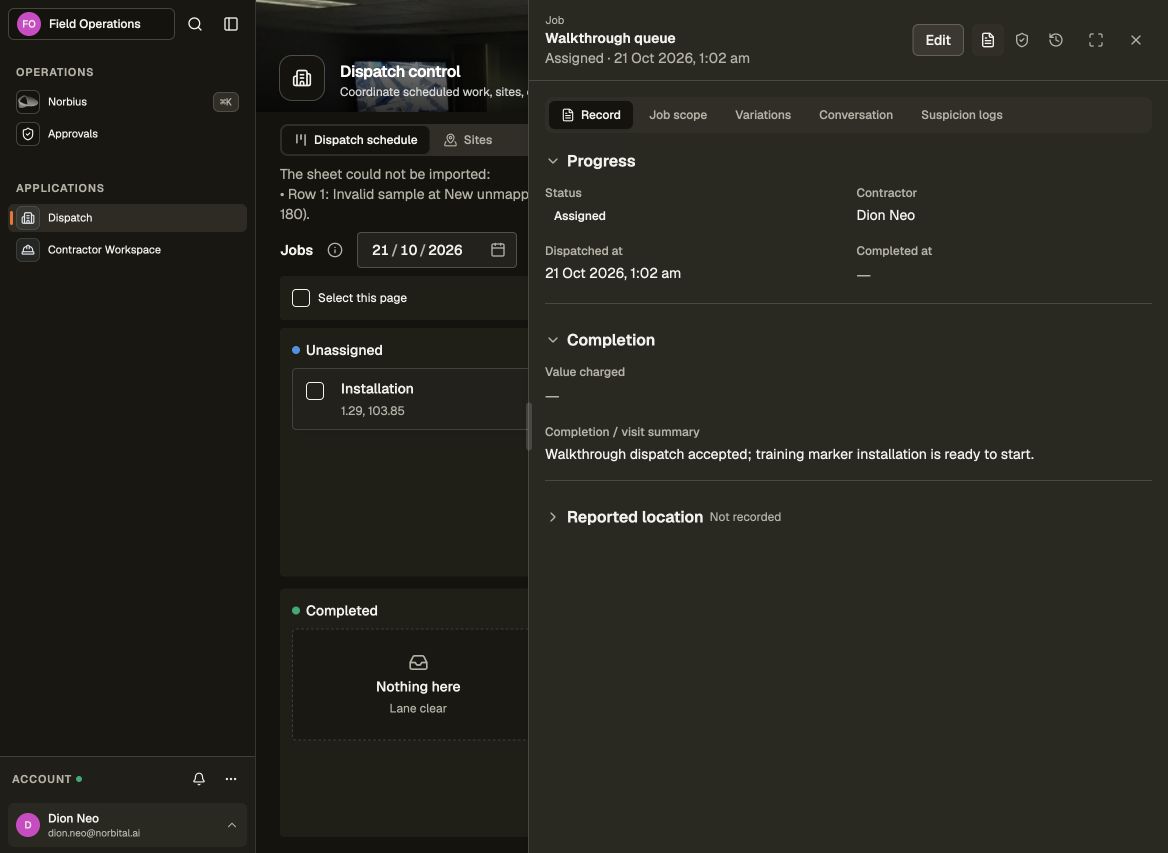
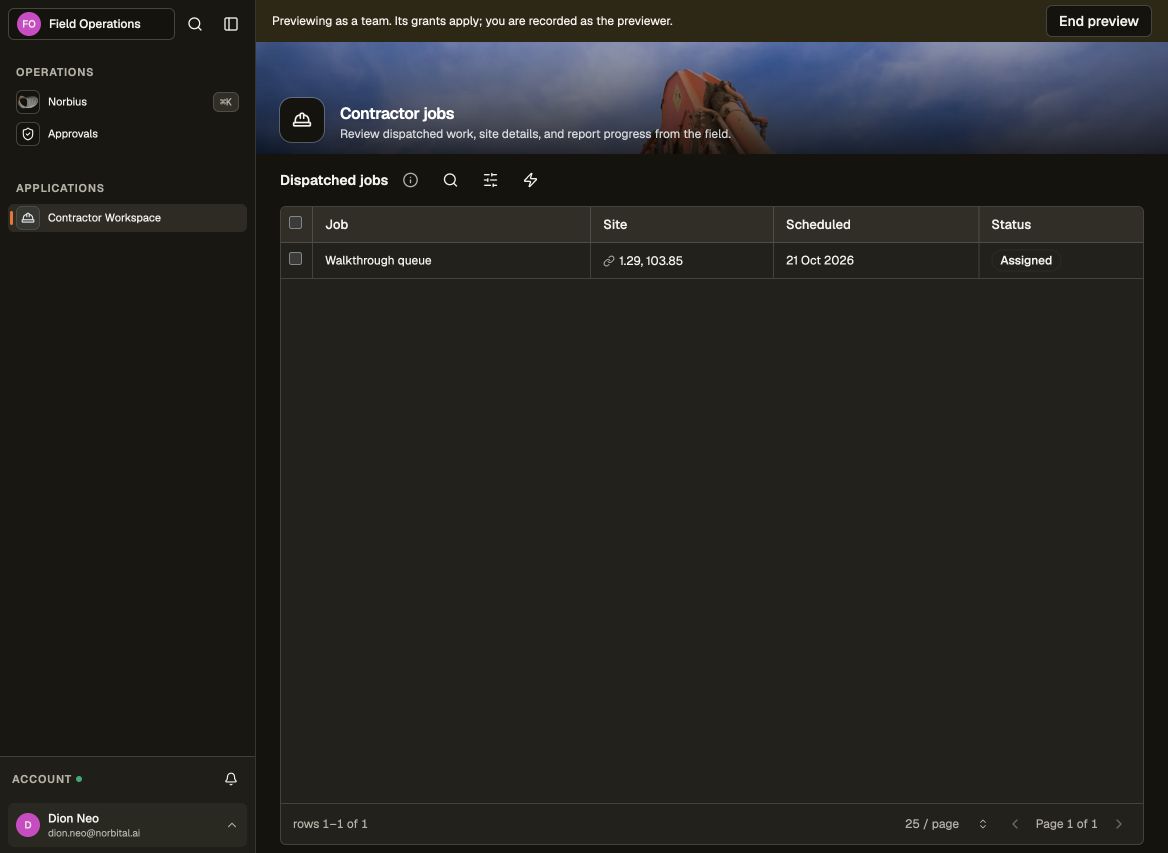
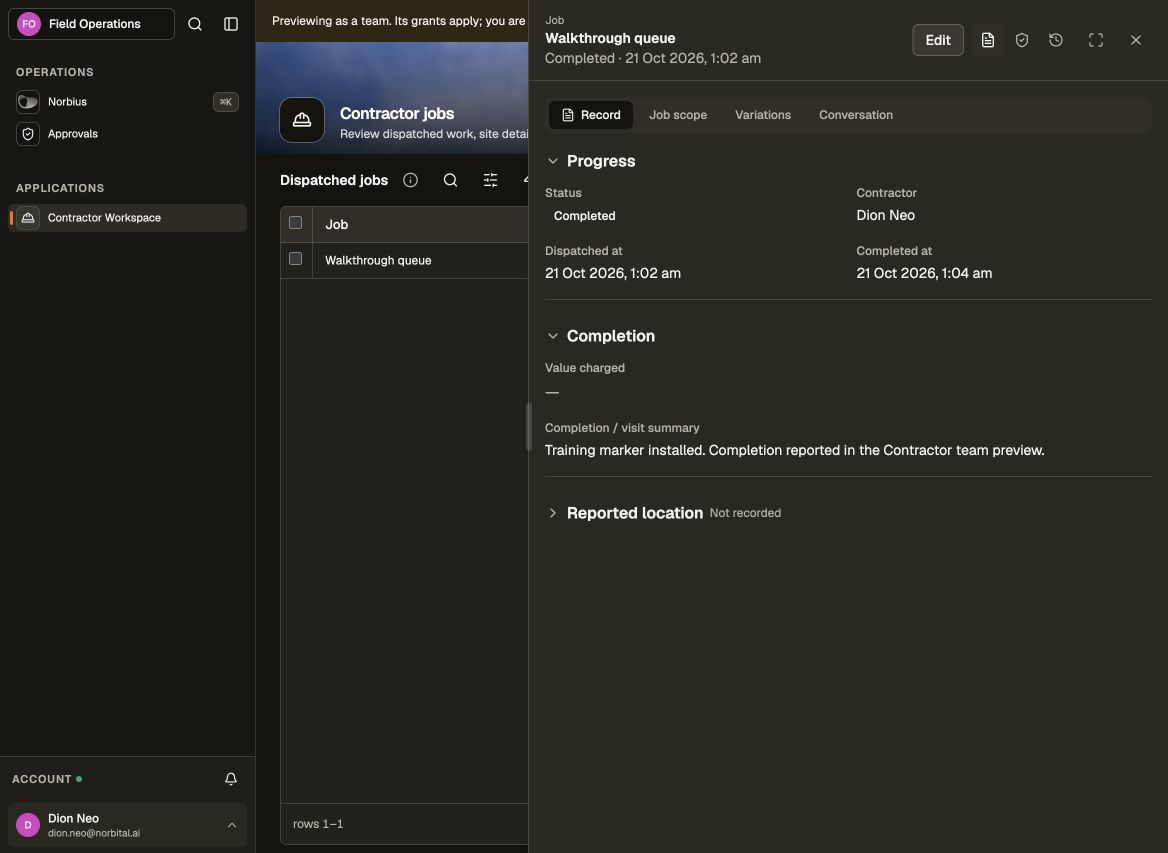
The assigned contractor opens Contractor Workspace → Dispatched jobs and sees only their assignments. Controllers using this page see workspace-wide assignments and a Contractor column. Use the table's view controls to filter by status and its search to find a job. The Job scope tab retains the site's work order while Progress and Completion capture the report:
- Keep Status at Assigned while the work continues.
- Record Value charged and Completion / visit summary when available. Expand Reported location to capture where the report was made.
- Set Status to Completed and save when the work is finished. The collection supplies Completed at if it was not entered; later summary edits preserve that completion time.
Contractors can report progress, completion, charged amount and location on their own jobs. Work order fields and reassignment remain controller operations. A completion report also makes the assignment eligible for another evidence review; completion does not settle an open finding.
4. Review a site's upcoming work and history
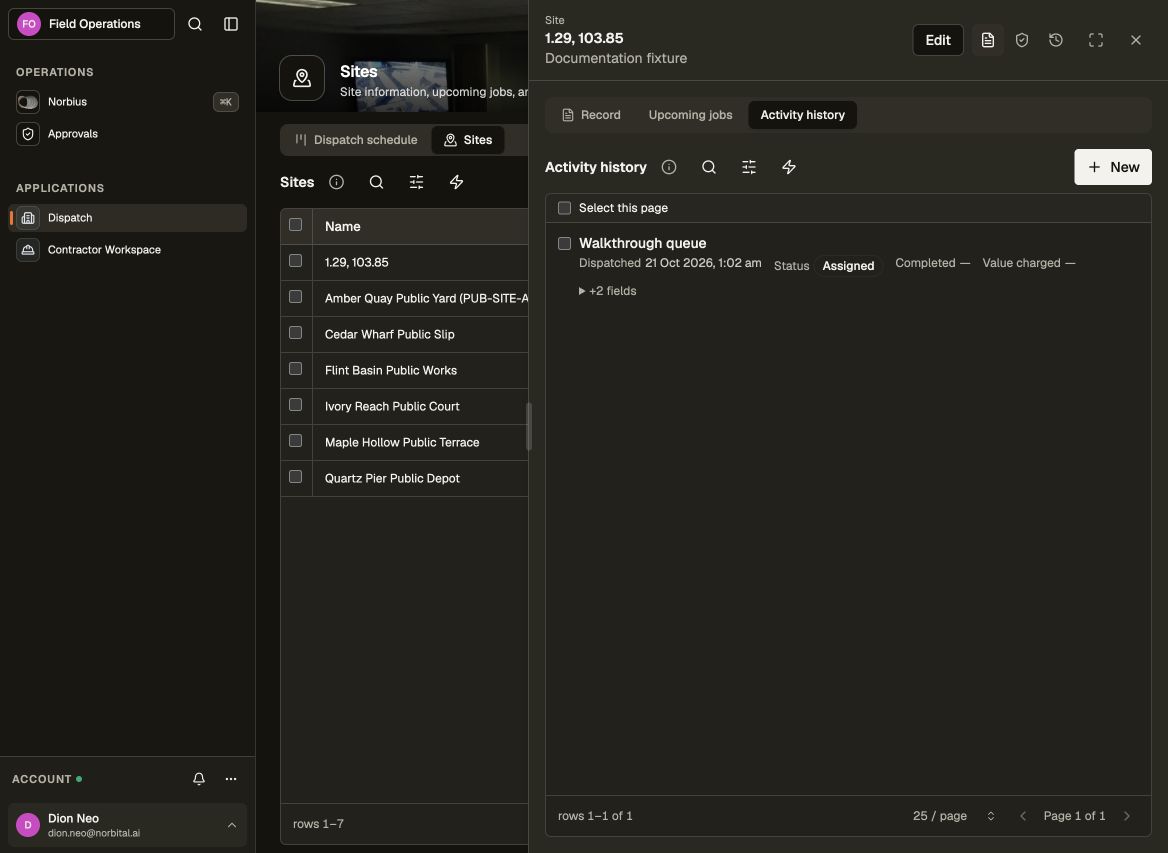
Open a site from Sites or the dispatch map. Upcoming jobs includes future work and unfinished assignments that are overdue. Activity history lists assigned and completed work, including dispatch/completion times, value charged, reported location and summary. Open a listed job to inspect its scope, variations, conversation and, as a controller, suspicion records.
Changing a site's Location updates the derived site title. Existing seed sites that have no location remain readable, but require a Location when edited.
5. Import a dispatch sheet
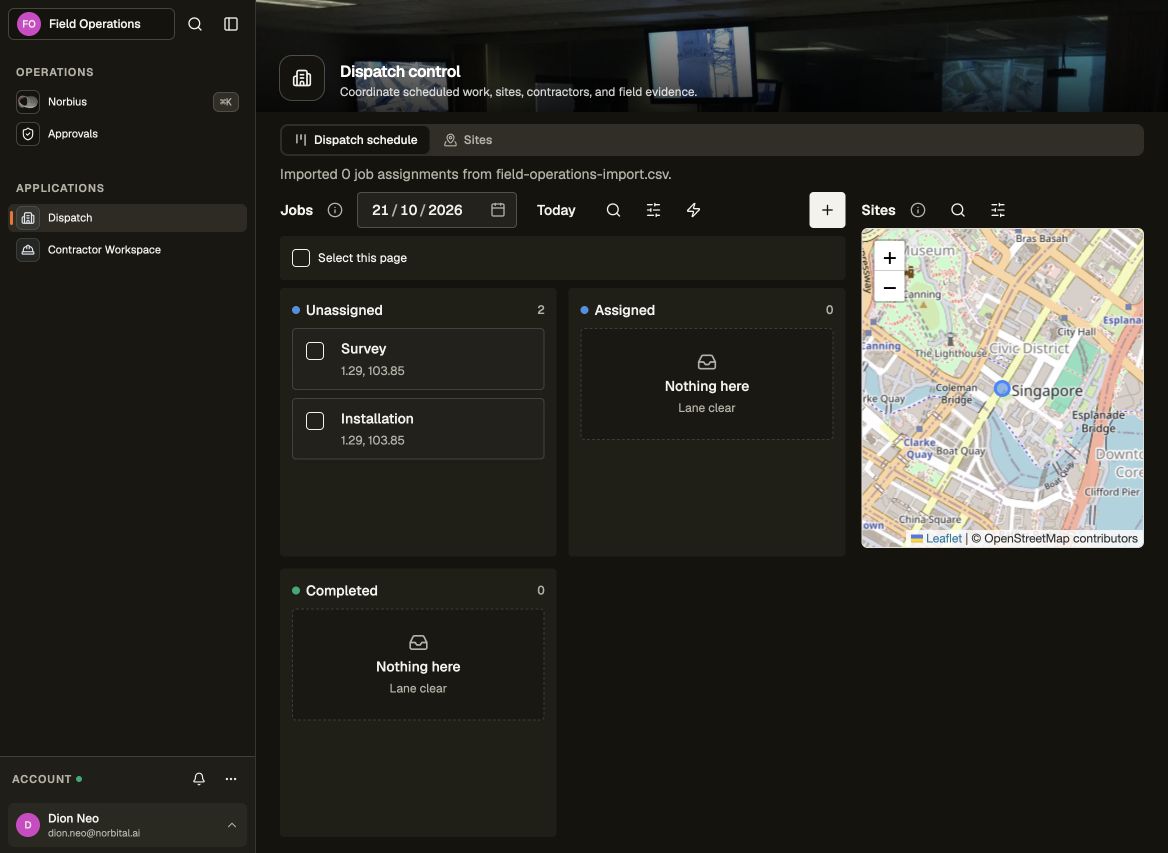
On Dispatch schedule, choose Import and select a CSV or XLSX. Start with the
CSV template and its
column reference. Each row needs site,
scheduled_for (YYYY-MM-DD) and title. An existing site can be named by code or matching
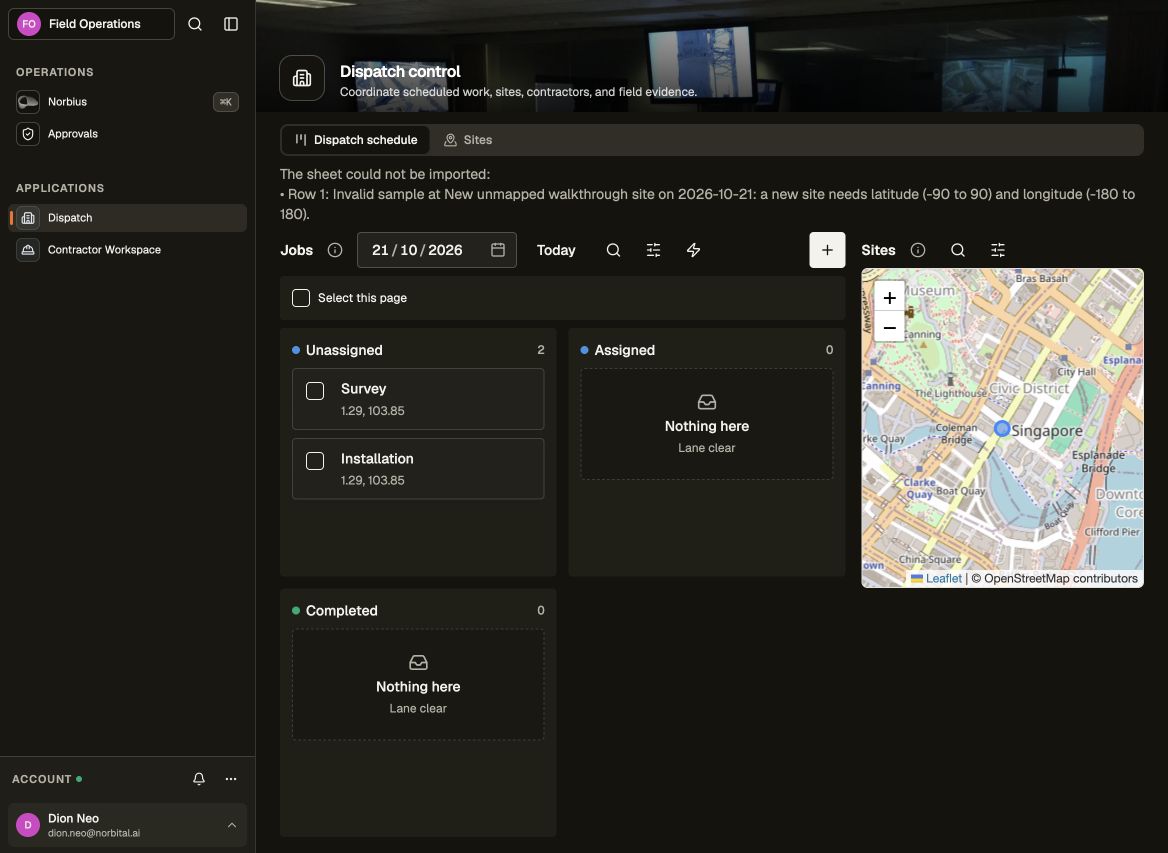
address and unit. A new site also needs latitude and longitude; import does not geocode
address text. unit_number is optional and overrides a unit embedded in the address. Optional
work-order columns include nature, description, contractor user ID and external_ref.
The complete sheet is checked before writing. Invalid dates, malformed member IDs, repeated references or missing coordinates for new sites produce row-specific errors. Fix the sheet and import it again. A valid import reports the number of created assignments; select the sheet's scheduled day to see them on the board. A contractor ID files the row Assigned; otherwise it is Unassigned. The ID must name a workspace member, so leave it blank when dispatching later.
Re-importing the same external_ref skips that work order. Without a reference, the same title,
day and site is skipped. A successful repeat therefore creates no duplicate work.
6. Propose a variation and decide its approval
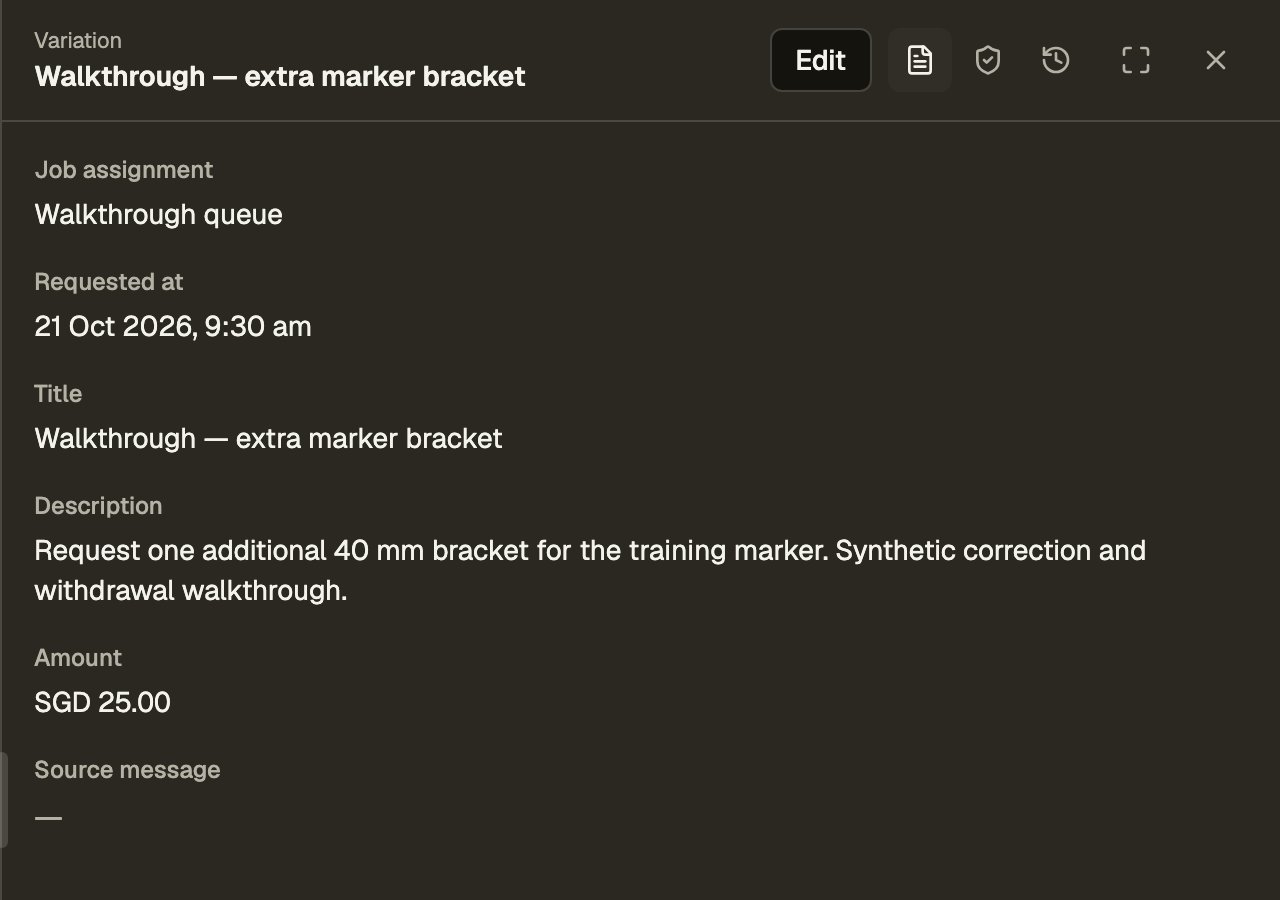
A contractor raises a scope change against their assignment using a variation creation record
(?record=variation_requests/new) or the in-app agent. Supply the assignment, requested time,
title and description; add the amount when known. The assignment's Variations tab lists
recorded requests; it is not a separate submission form.
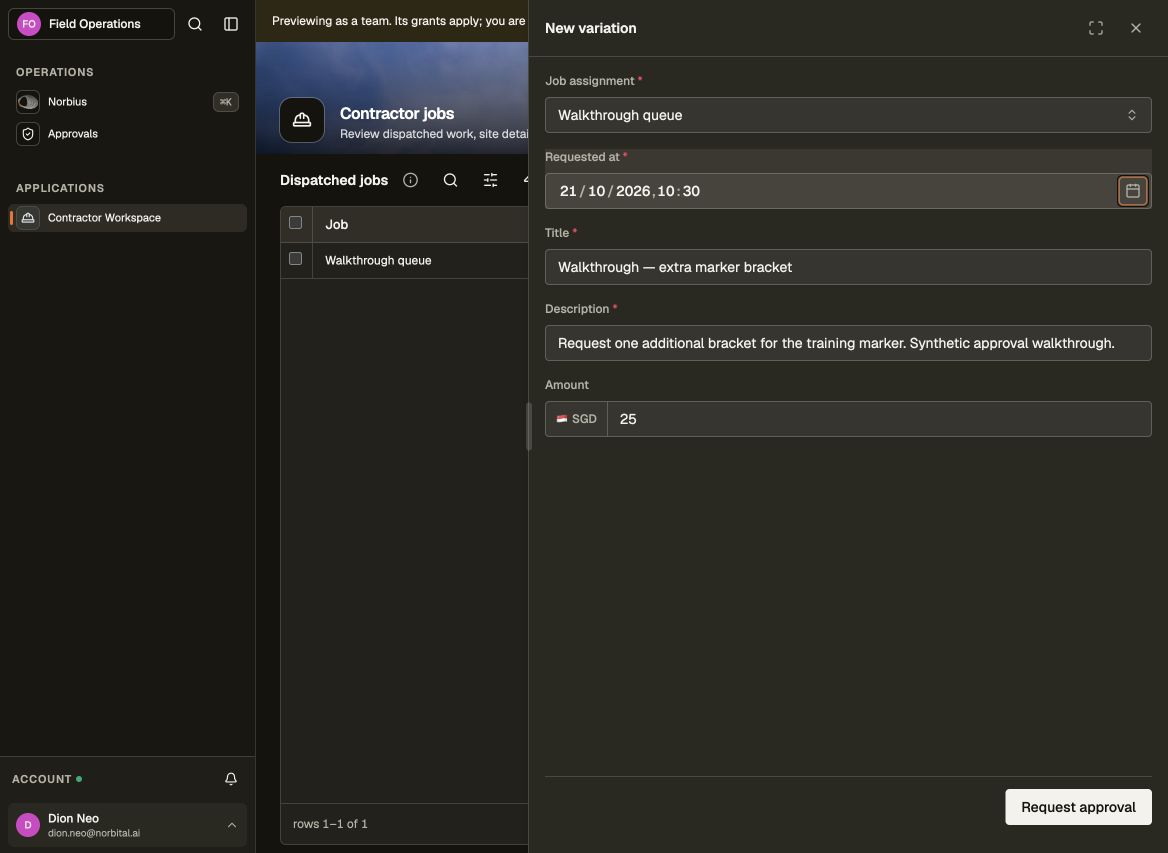
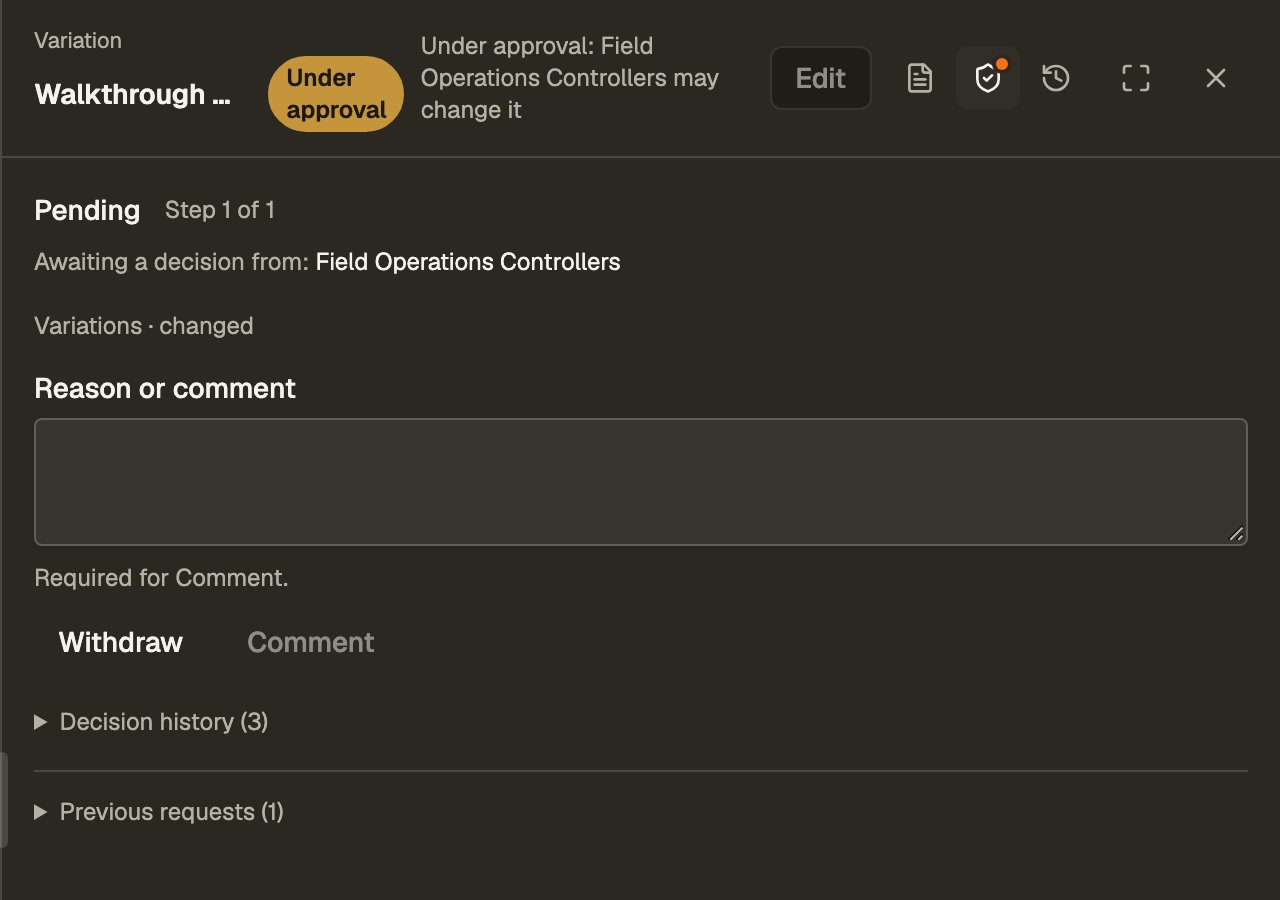
Submitting as a contractor returns Pending approval for Field Operations Controllers. The proposal is held while the decision is outstanding, so its presence is not evidence that the commercial change has been approved. Creating the same variation as a controller uses the controller's direct authority and commits immediately.
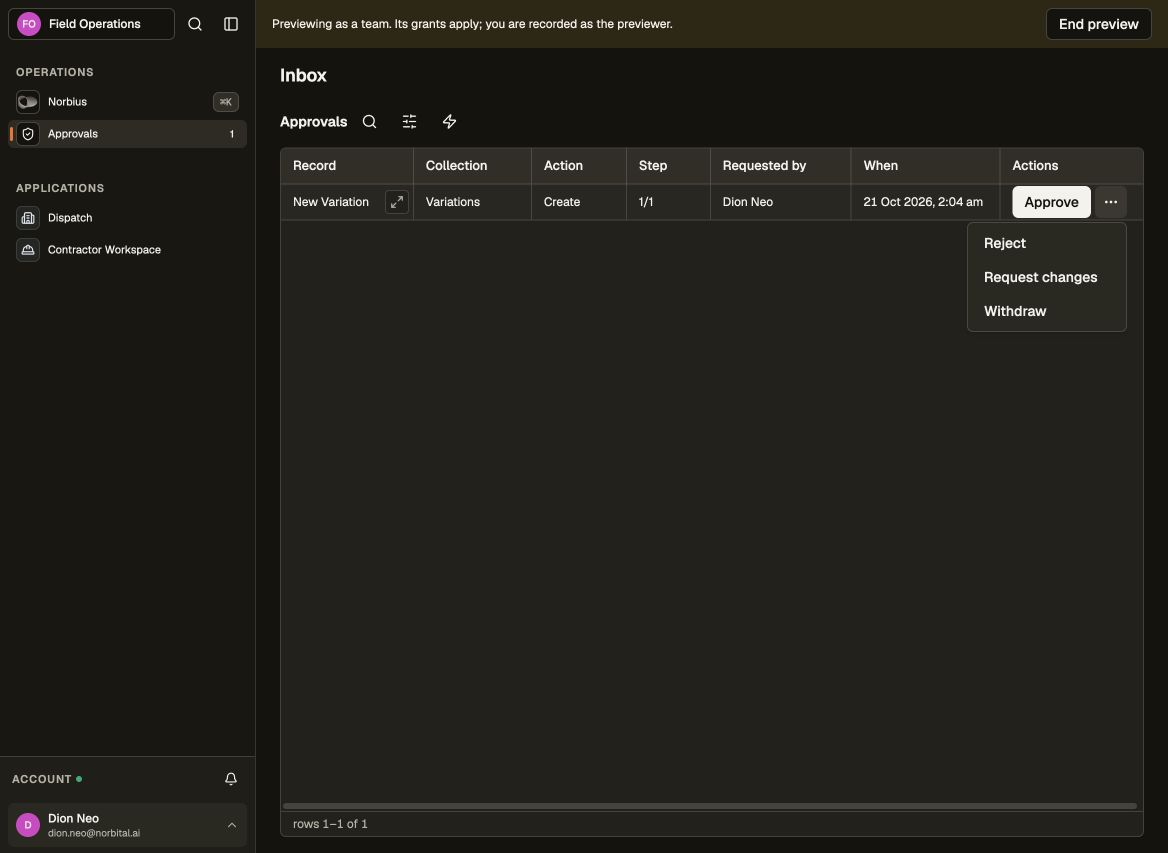
The controller opens Approvals (/inbox) and opens the request to review its record. The
inbox offers only the moves allowed for the current person and state. The requester and
approvers retain access to the held record while unrelated changes are blocked.
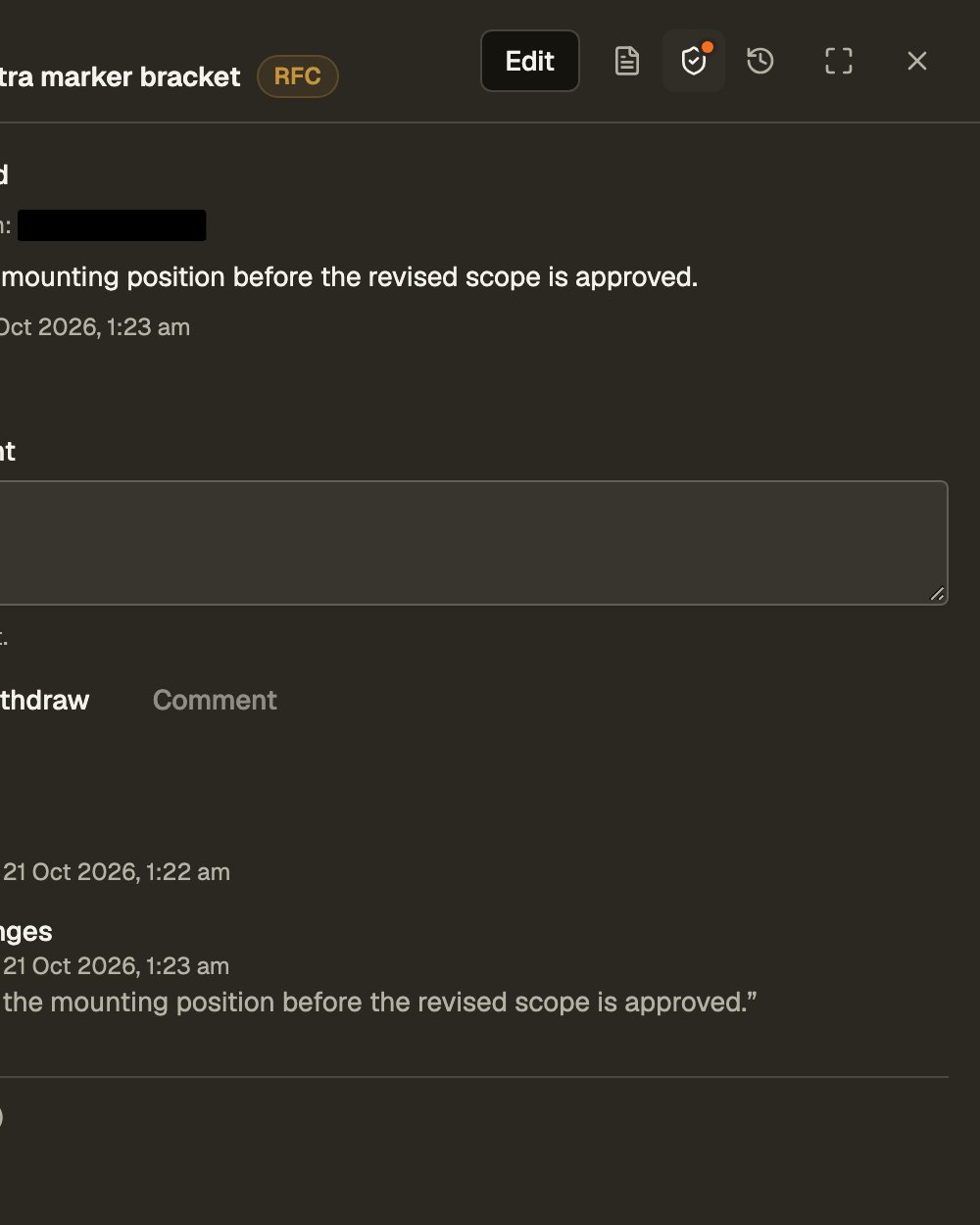
The current decision, the next person to act and the latest decision reason appear first in the record's Approval panel. Enter a Reason or comment before choosing Request changes; the inbox also opens an inline reason form for that action. The compact RFC status expands to Request for change on hover or keyboard focus.
| Decision | What happens to the proposal | What to do next |
|---|---|---|
| Approve | The proposed values are accepted. | Continue the job. |
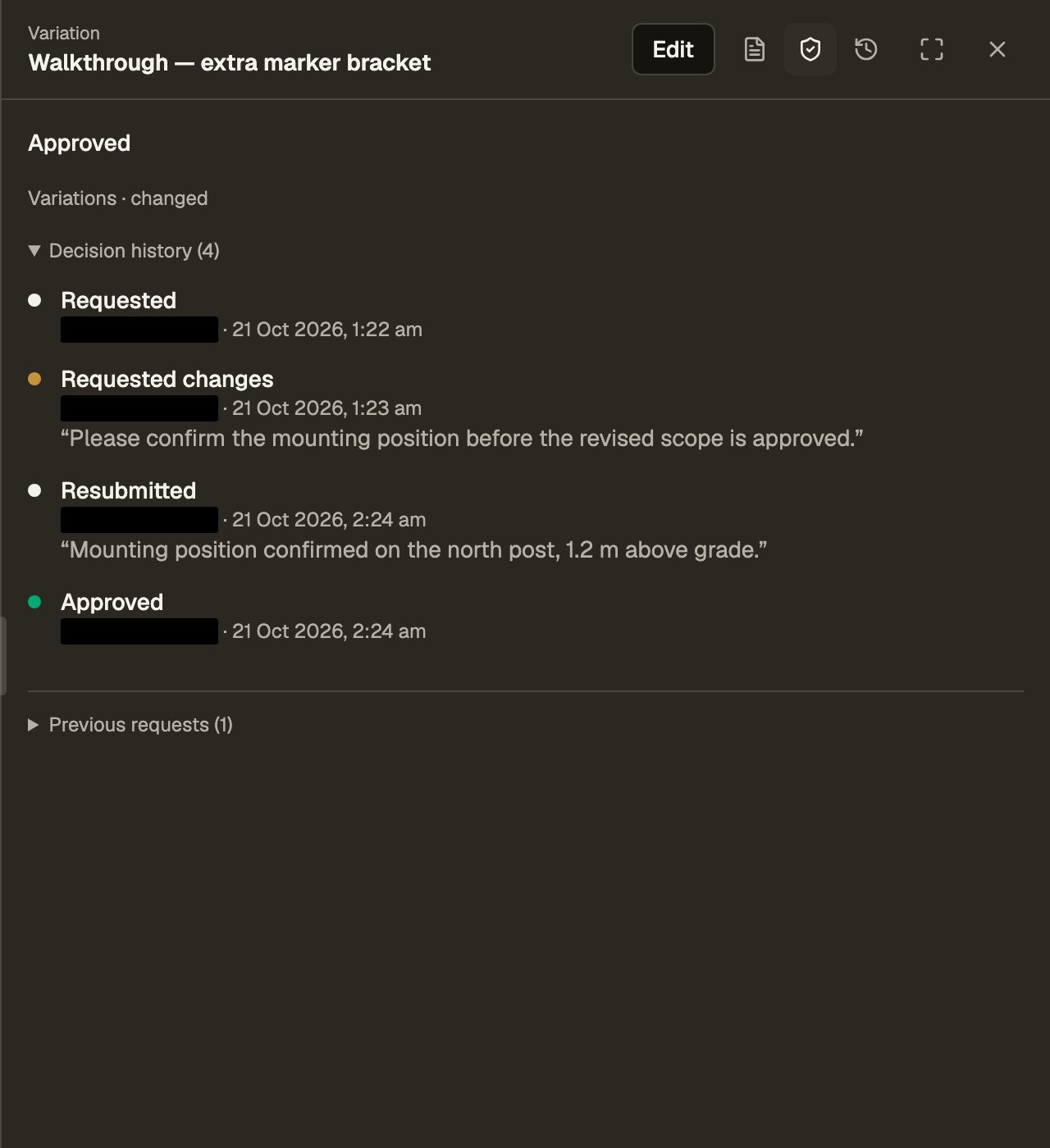
| Request changes | The proposal remains held; its values stay available for correction. | The requester edits it, saves with Request approval, then Resubmit. |
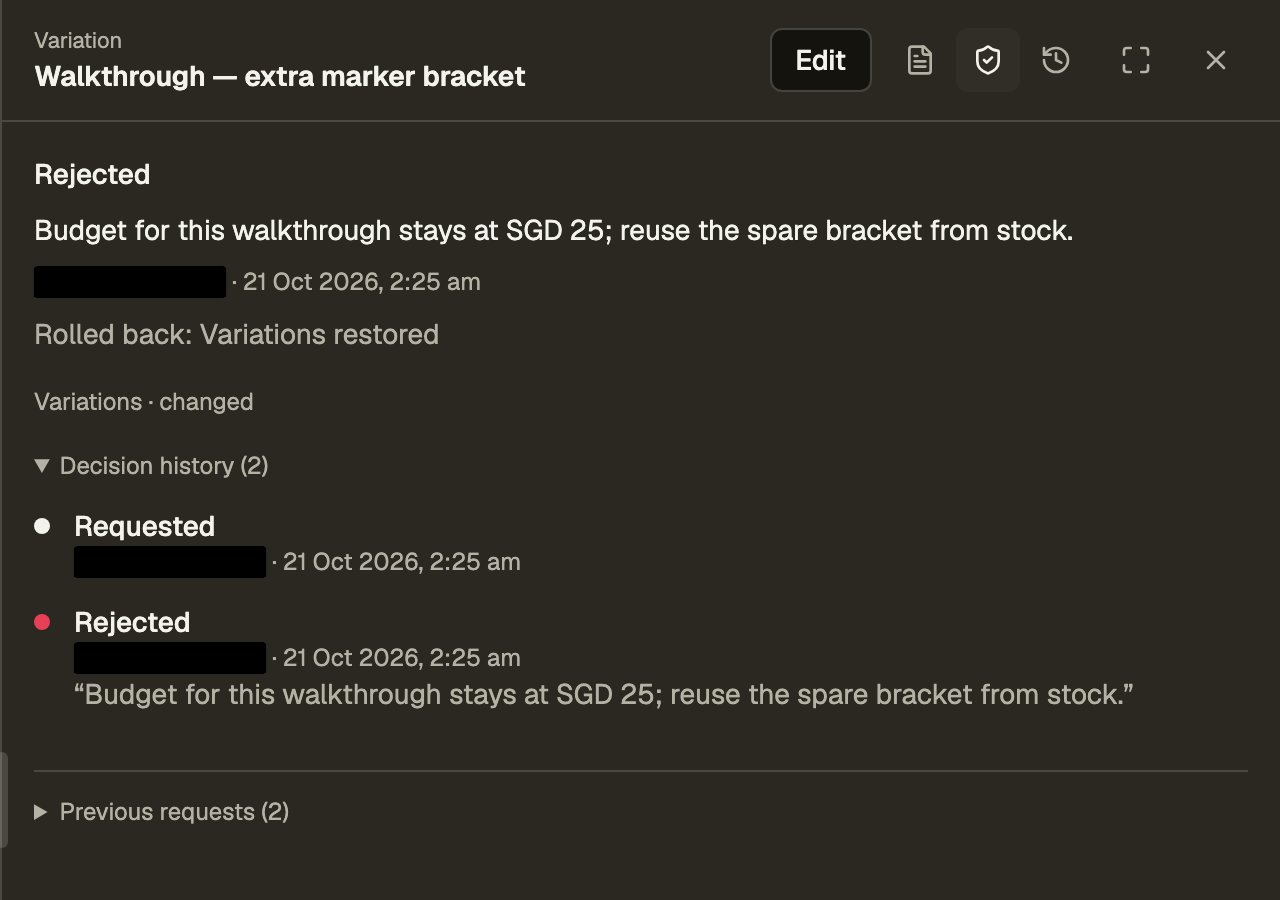
| Reject | The proposal is reverted. A newly created record is removed; an updated record returns to its previous values. | Read the reason and restoration result. A later attempt needs a new request. |
| Withdraw | The requester ends the request and reverts the proposal. | Return to the previous record state. |
For example, rejecting a proposed change from SGD25 to SGD35 restores SGD25. Rejection ends the request; it is different from asking the requester to correct and resubmit that same request. The panel reports the actual restoration result, including anything that could not be restored. Expand Decision history for reasons, timestamps and resubmission events, or Previous requests for an earlier decision. A rejected creation can still be reviewed from Approvals after its proposed record has been removed.
7. File photos and inspect the assignment conversation
Create a photo evidence record (?record=photo_evidence/new) for a permitted assignment or
variation. Select exactly one parent and attach a JPEG, PNG or HEIC photo up to 20 MiB. A
workspace upload is labelled as such; the photo's file, parent and provenance cannot be replaced
after filing. Correct a mistaken filing by adding the correct evidence.
The creation form asks only for the parent record and photo. Provenance is supplied by the system, so there is no required Source field for the person to fill.
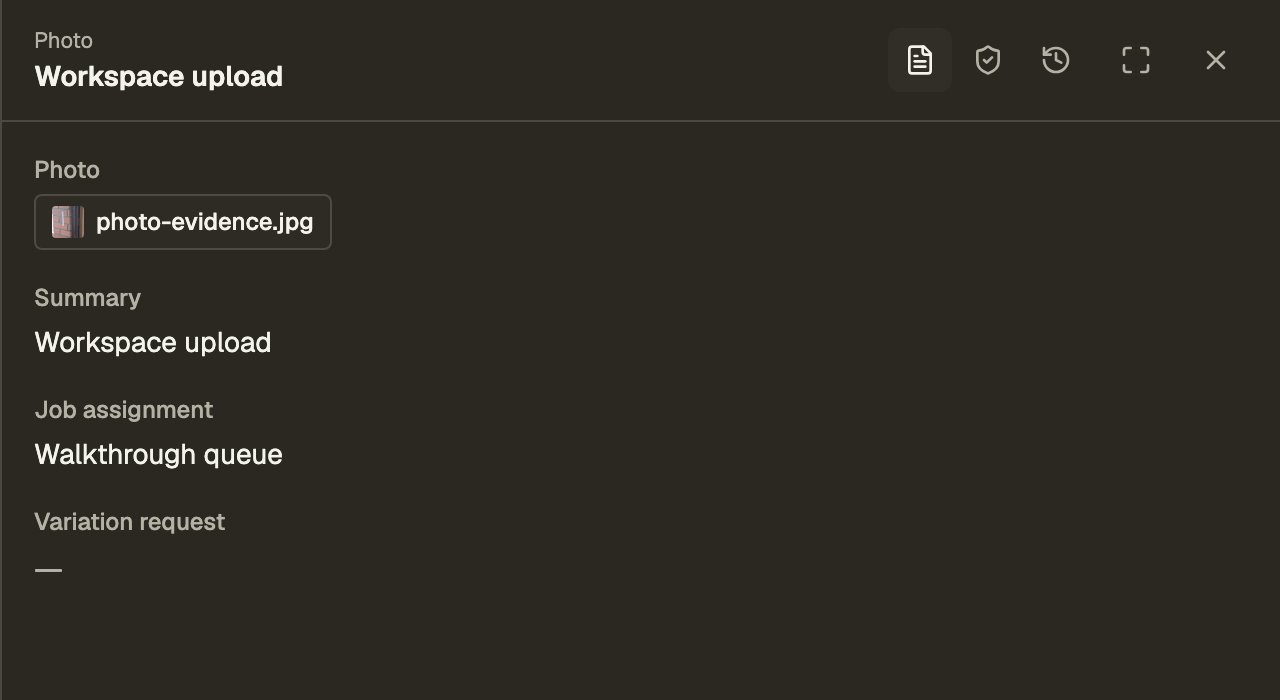
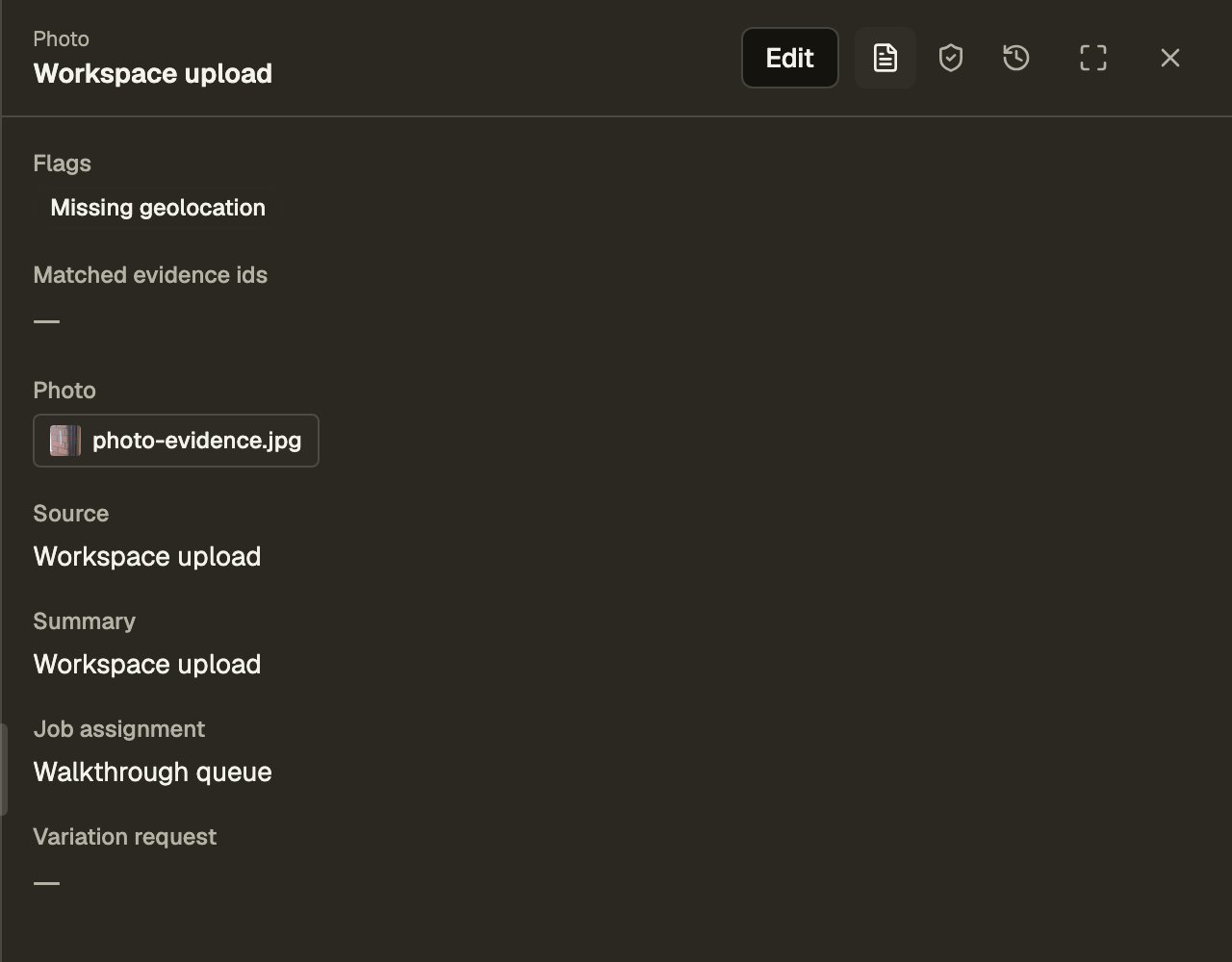
Filing starts inspect_photo_evidence automatically. A controller reopening the photo sees its
integrity facts: a photo without EXIF GPS shows Missing geolocation, and Matched evidence
ids stays empty when nothing duplicates it.
The WhatsApp Envoy can instead file the attachment and its source as part of an assignment report. It retains the textual messages about that assignment once per provider message. Open the job's Conversation tab to read the messages and photos in time order. Select a photo to open it at full size; Latest returns to the newest item after scrolling away. The timeline is read-only, and communication records are captured from inbound reports rather than typed into this tab.
Contractors see their own messages and photos. Controllers also see the source and integrity facts. Variation evidence remains attached to its variation; the site handover includes both assignment and variation photos.
8. Review evidence and close a finding
The controller chooses Suspicion review on Dispatch schedule. The automation inspects
pending photos and reviews unchecked assignments, including completed work. Open
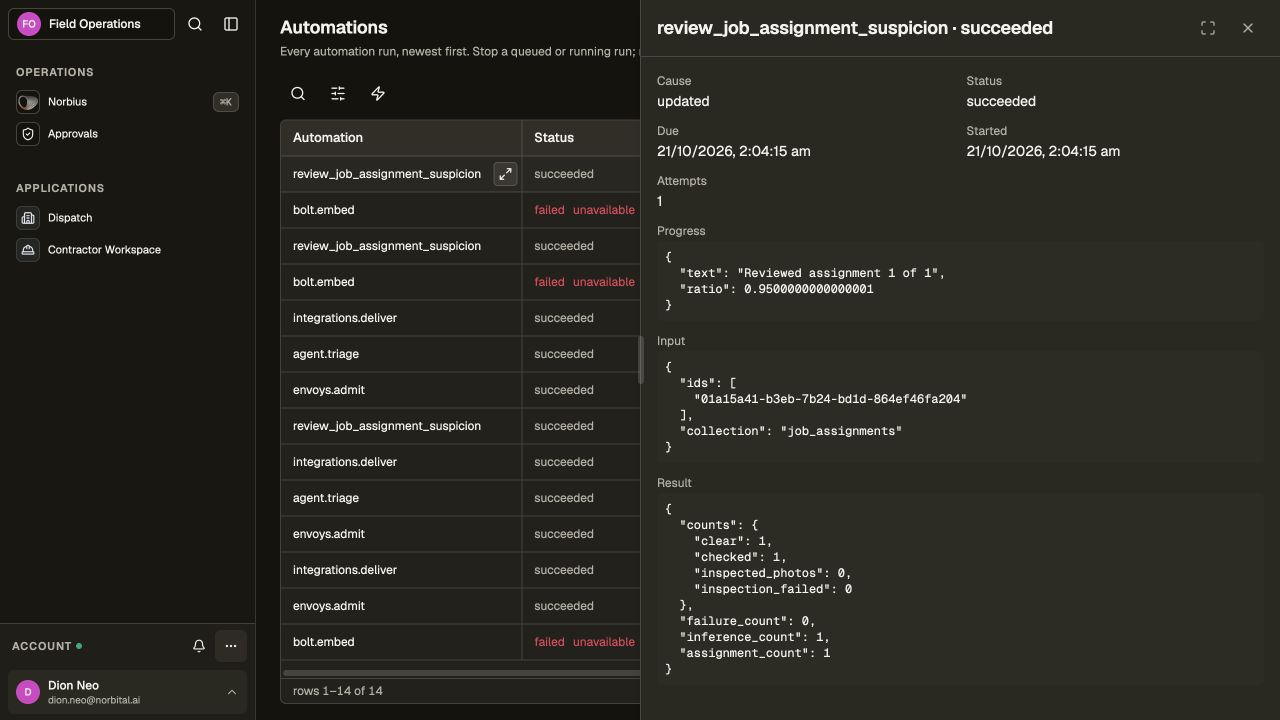
Settings → Automations (/settings/automations) to inspect progress, output counts and any
failure. The host needs the workspace's default AI model and scene/default embedding
mappings for the corresponding AI features.
Open a job's Suspicion logs tab. Evidence facts reports observations such as missing GPS, photo reuse or a site mismatch. Similar photos in other assignments shows comparisons actually supplied to the review. Select either photo for a larger view. These facts alone do not mean that the job is suspicious. Every AI decision has a read-only suspicion review with its reason and Basis and model; only a suspicious decision raises an open judgement.
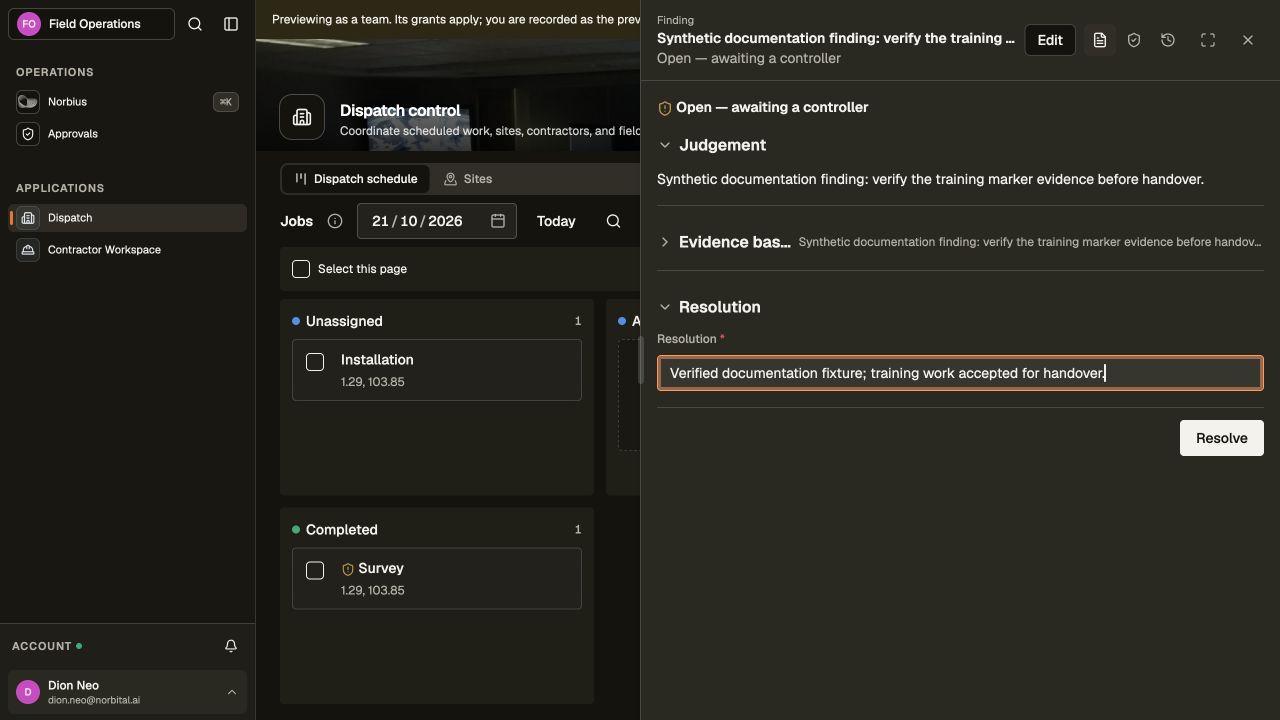
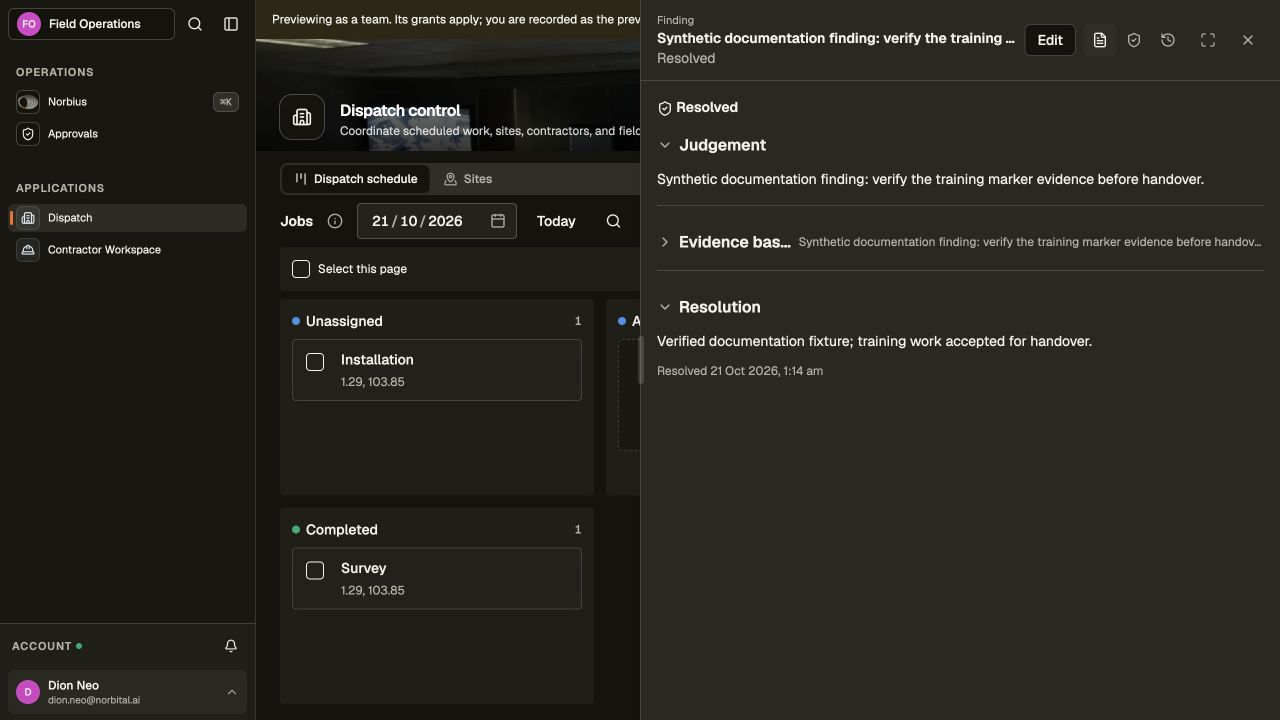
A controller may also create a finding (?record=suspicious_activity_logs/new) by selecting
the assignment and supplying a judgement. To close an open judgement, enter the controller's
conclusion under Resolution and choose Resolve. The saved resolution records who decided
and when. It cannot be reopened or rewritten, and the original evidence basis remains available.
Any other open judgement still requires its own resolution.
9. Hand selected sites to another system
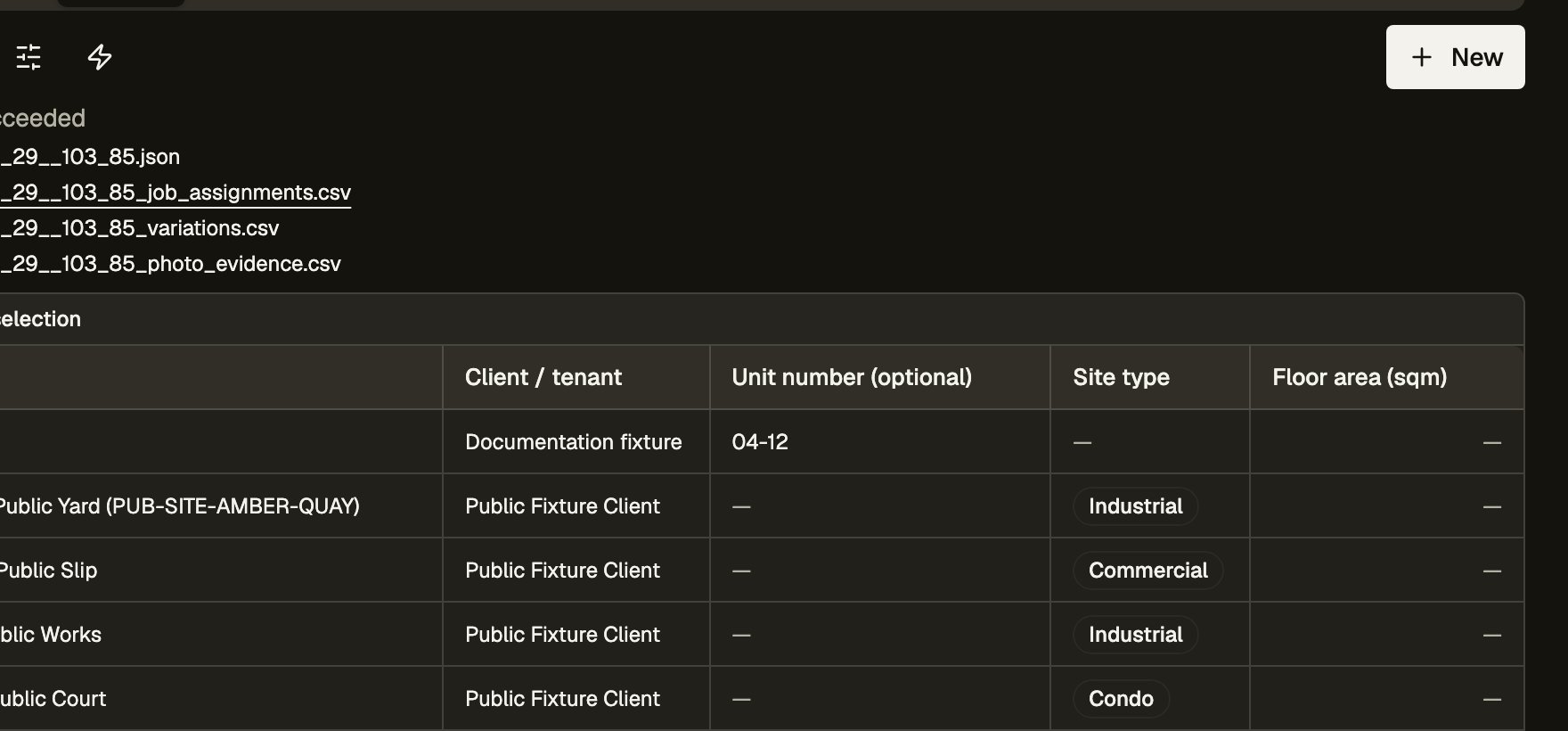
In Sites, select one or more rows and choose Actions → Site handover. On success the page reports Site handover succeeded with download links; the same output stays on the automation run under Settings → Automations. Each selected site produces four files: a JSON bundle, a job-assignment CSV, a variation CSV and a photo-evidence CSV. The JSON contains the site details and those related records, including held variations and their photos. File references and integrity facts travel with the evidence; this action exports the records rather than changing their workflow state.
10. Connect and operate the WhatsApp Envoy
An administrator opens More → System → Integrations
(/settings/integrations). Under Agent channels, Norbital · Private is the
field_ops_whatsapp source role. This template already declares its named WhatsApp connection;
use that instance rather than creating another channel for the same Envoy.
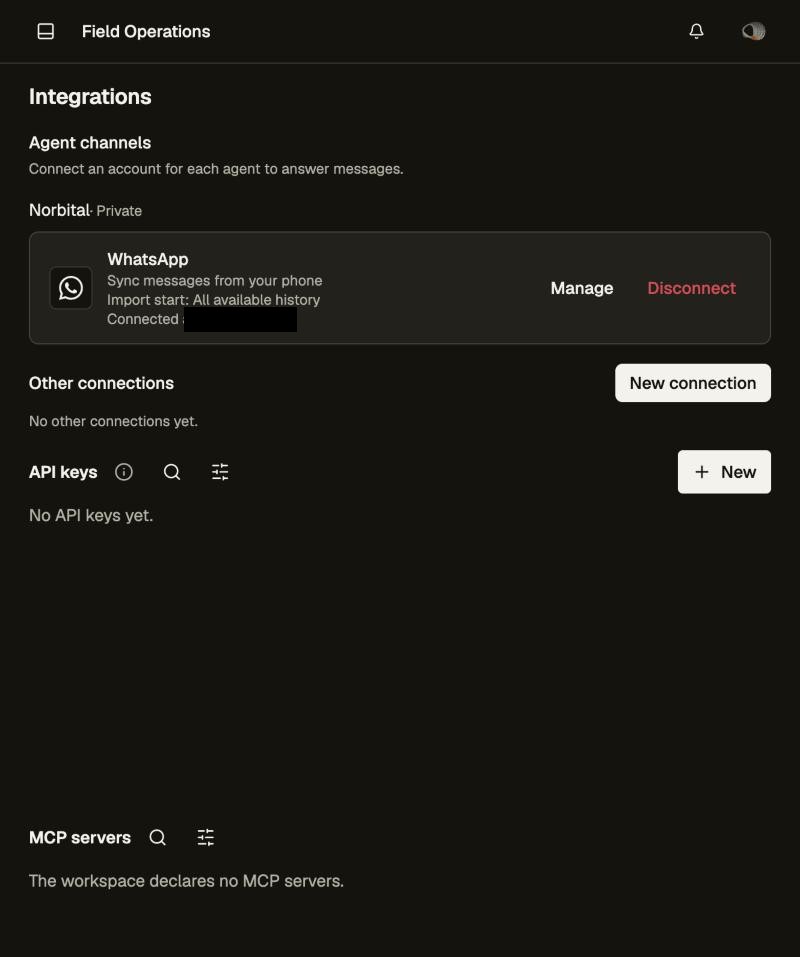
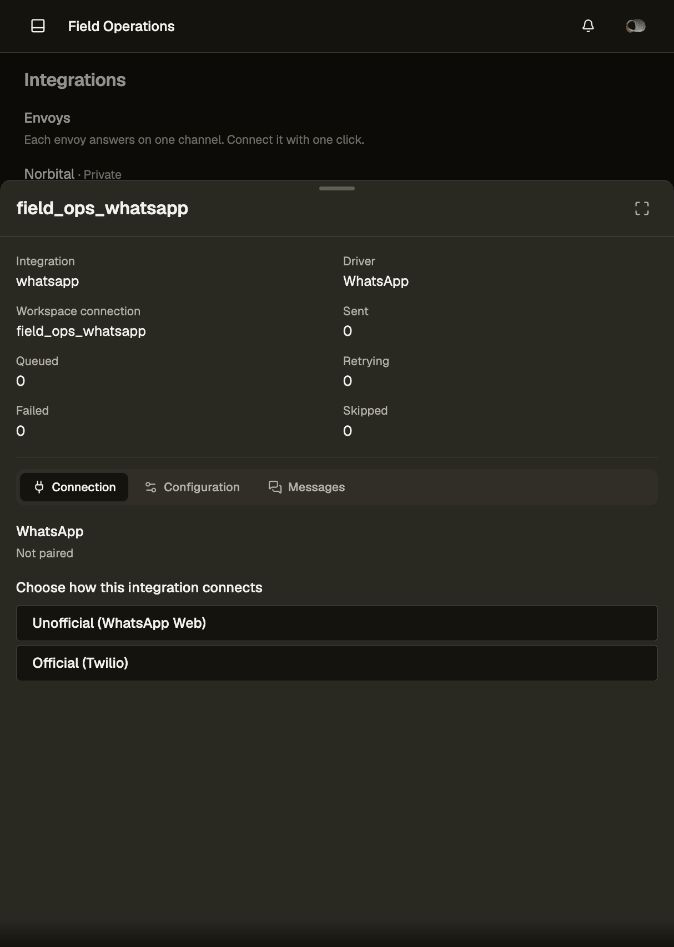
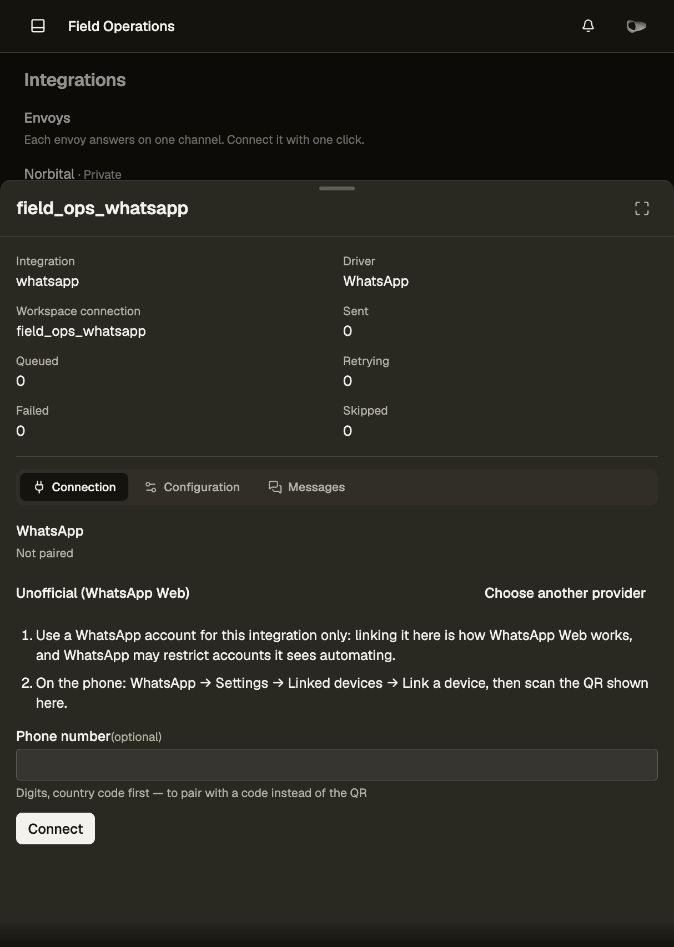
- For an unpaired WhatsApp channel, choose Connect. For an already connected channel, choose Manage. Manage opens that connection's Connection, Configuration and Messages tabs; agent connections appear once, above Other connections. If the host offers more than one provider, choose the available provider and follow its displayed steps.
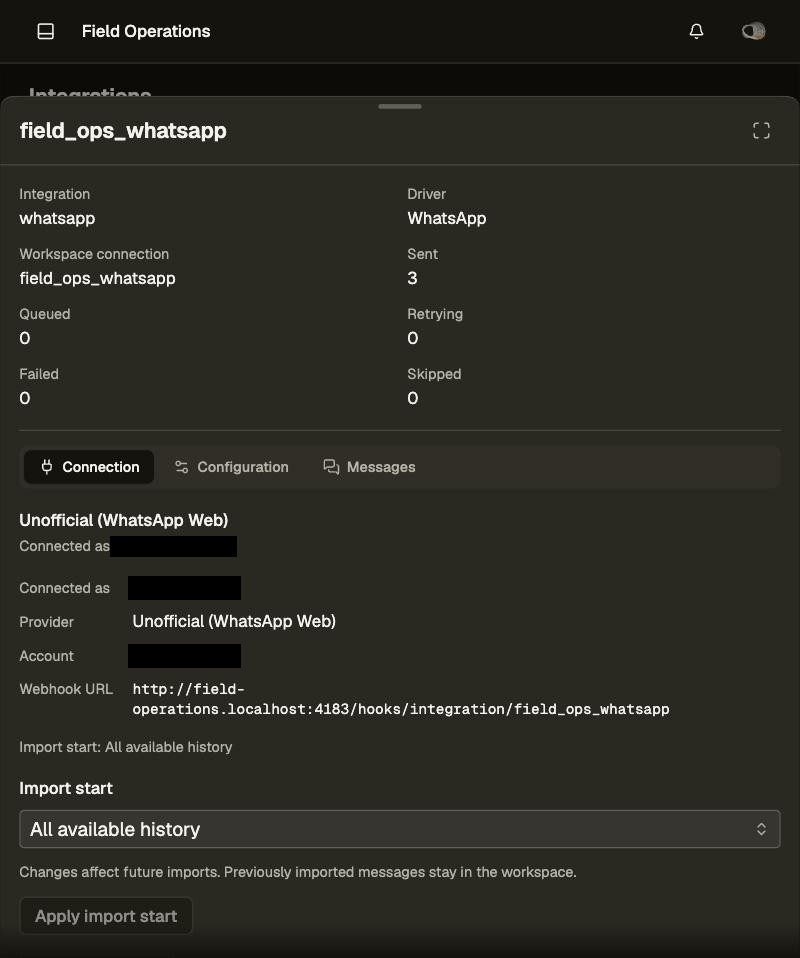
- For Unofficial (WhatsApp Web), choose Import start: From now, Since a chosen date, or All available history. This controls which provider history is imported. A chosen date begins at midnight in its selected time zone; available history depends on what the provider supplies. Keep the existing choice when resuming a paired account. Leave Phone number (optional) blank and choose Connect to request a QR code. Scan it with the phone whose number should answer. To request a pairing code instead, enter the phone number as digits with the country code first, then choose Connect. A QR view may also offer Use a phone number instead. Other providers display their own required credentials and callback instructions. Wait for Connected, and confirm the displayed account is the intended one.
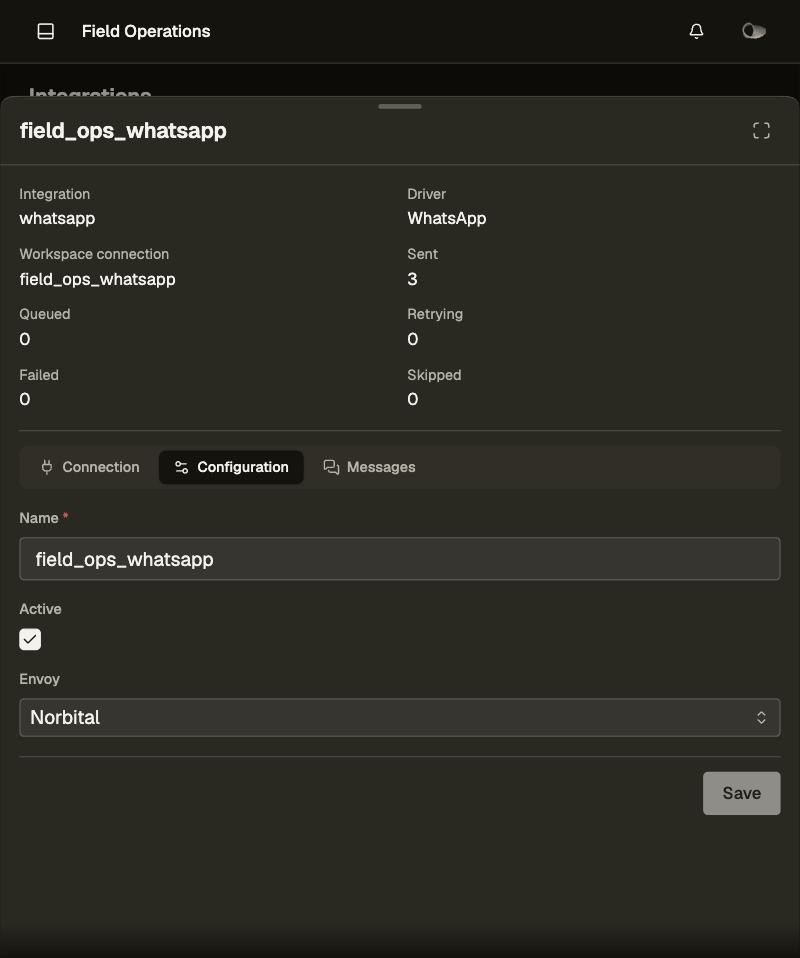
- In the instance's Configuration tab, verify Envoy is Norbital and Active is enabled; Save any changes. The source supplies the named connection and its default Envoy, while a saved pause survives a rebuild. The connection owns pairing, the deployed Envoy and pause state; the source role owns its task, policies and conversation behaviour.
- Finish the member's Mobile number setup described above. A direct message from an unknown number receives the fixed not-recognised notice and does not start a model turn.
- From a linked member, report the existing job by site and work, for example: “The fixture installation at the public yard is complete; the photo is attached.” When a report could match several assignments, the Envoy asks which one. It confirms after the update succeeds.
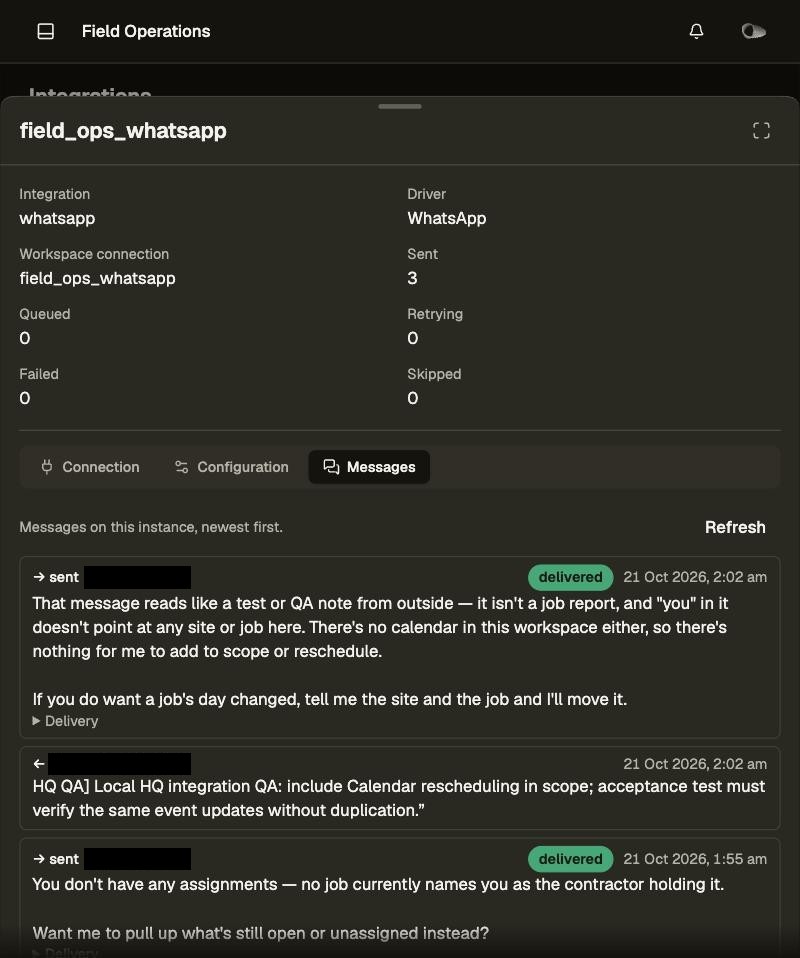
- Reopen the job to verify its status, summary, photo and Conversation entry. Inspect the integration's Messages tab for inbound/outbound messages, delivery state and errors.
The Envoy's task is to update existing assignments. Its own policy grants no job creation,
deletion or reassignment. A DM combines the linked member's authority with the Envoy's policy,
so a controller or administrator's DM can have broader permissions. A group turn uses only the
Envoy policy, which permits updating any assignment. In groups, a mention or reply is a direct trigger.
This template also enables triage with triage: {}, so ordinary linked group messages can be
considered for a response; absence of a mention does not guarantee silence. Delegation is disabled.
Use Test connection when the provider offers it, supplying the destination it asks for. After connecting, use Manage → Connection → Import start → Apply import start to change the boundary for future imports. Previously stored messages remain available. Reconnect repeats setup; Disconnect unpairs the session. A source-named connection remains in the workspace after disconnect. To pause processing, turn Active off and save; enable it again to resume. This private Envoy's Agent transcripts are available to linked members who have participated in the conversation. A group transcript includes shared group history; it is not automatically listed for every contractor. Administrators can inspect the integration's raw messages in System → Integrations.
To retain pairing between local sessions, preserve the host's workspace database, file store and credential-sealing master key together. A new disposable database cannot restore a previous pairing. Credentials belong to host storage and are never copied into template source or seeds.
The setup screenshots document the local controls and provider choices; pairing codes and private message contents are excluded. The local walkthrough also verified a real phone pairing, a linked member's inbound assignment query and its Envoy reply, and reconnection from saved local state without a new QR code. Automated Envoy tests use a fake WhatsApp link and scripted model; they validate admission, authority, message/photo filing and receive limits. Those tests do not establish real-provider delivery of every report or attachment scenario.
Envoy probe results (local, 21 October 2026)
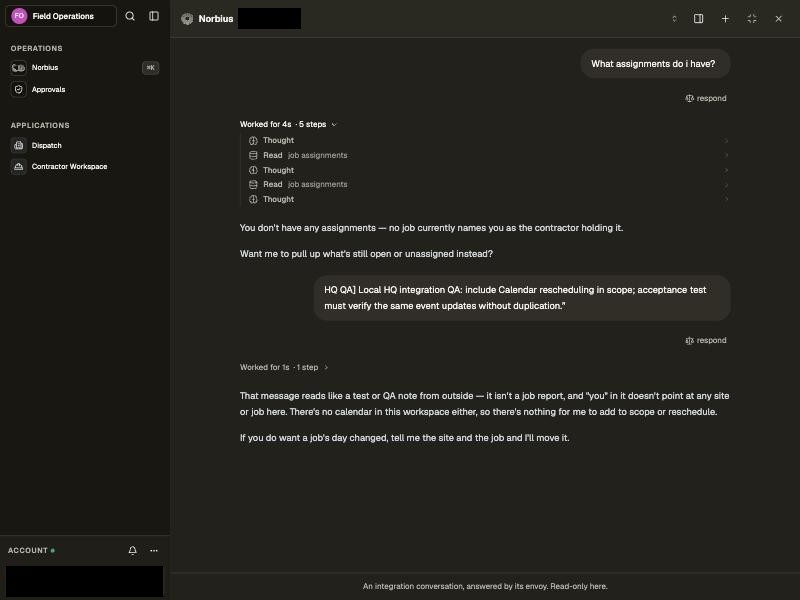
Manual probe of the persistent local workspace (pnpm run env -- serve --template=field-operations --port=4183, origin http://field-operations.localhost:4183), signed in as the founder
administrator. Phone numbers and names are covered with solid boxes.
| Probe | Steps | Result |
|---|---|---|
| 1. Envoy configuration | System → Integrations → Norbital · Private → Manage: Connection, Configuration, Messages. | PASS. WhatsApp shows Connected with Manage/Disconnect; Configuration has Envoy: Norbital, Active on. The server was restarted (normal serve, auto-resumed saved state) after pairing and came back Connected with no new QR code. |
| 2. Envoy conversation | A linked member DMs the paired number “What assignments do i have?”; open Norbius → conversation list → Norbital (DM). | PASS (existing turn). The transcript shows two Read job assignments steps and a reply that no assignment names the sender as its contractor, which matches the data. The turn was sent before this probe; no new message could be sent during it. |
| 3. Envoy actions (status update / photo report) | DM a report naming an assigned job (“…is complete; photo attached”), then reopen the job's record, Conversation tab and history. | NOT RUN. No WhatsApp client for the linked member's number was available to the probe. |
| 4. Policy boundary | DM a request outside the Envoy policy and verify refusal. | NOT RUN (same reason). For a DM, the linked member's own authority is added to the Envoy policy (dm: 'union'), so a test of the policy alone needs a contractor-only member or a group turn. The policy itself grants read and status/summary updates on any assignment, so asking about another person's assignment is allowed, not refused. A boundary test asks to create, delete or reassign a job. |
To finish probes 3 and 4, send from the linked member's own WhatsApp to the paired number:
(a) a completion report with a photo for a job assigned to that member, then verify status,
summary, photo and Conversation on the job and the Envoy as actor in its history; (b) from a
contractor-only member, “Reassign
Data model
site → job assignment → user (the assignee)
             ↓
       photo evidence ← variation request
communication logs (immutable inbound messages, one per assignment)- site — a physical site with client context, a required location and an optional unit number. Its label is derived from the selected location; legacy seed sites without coordinates remain readable until edited. Past jobs remain attached to the site.
- job_assignments — one dispatched day job: the work order (site, day, title, nature,
description, the dispatch system's reference) and the contractor who holds it, in one row.
assignee_user_idisuser.iddirectly — a contractor is a role, not a record, a user whose team holdsfield_ops_contractor— and is null while the work order is filed but unassigned. Controllers file work orders in the dashboard or import them from a sheet;external_refis the dispatch system's reference when a sheet carries one (unique, so a re-imported sheet files nothing twice) andsource_message_idis the WhatsApp message the dispatch came from. Status runsunassigned→assigned→completed; whether the work was legitimately done is a suspicion question and is never stored on this row (suspicion_checked_atis the only suspicion-adjacent column, written by the review automation after a run). - variation_requests — a scope change against one assignment. The new-record mutation is governed by the contractor policy's approval flow: writing one raises a platform approval request for a controller review step, not a row that is directly applied.
- photo_evidence — one explicitly filed photo attached to exactly one assignment or one
variation, with deterministic integrity facts. Channel history and attachments are stored
separately by the platform; the assignment's message content is retained in
communication_logs. - communication_logs — the contractor's inbound messages about one assignment, immutable, one
row per provider message (idempotent on
source_message_id), retained independently of agent transcripts. The suspicion review reads them. - suspicion_reviews — one audit row per AI review of one assignment's evidence basis, including clear decisions; controller-only.
- suspicious_activity_logs — an AI or authorized-human suspicion judgement against one assignment: an immutable evidence basis, the reason, and an explicit controller resolution that is the only way a log closes.
Automations and integrations
| Automation | Trigger | What it does |
|---|---|---|
inspect_photo_evidence |
photo filed | Fills each pending photo's SHA-256, PDQ and scene embeddings, integrity flags and near-duplicate matches |
review_job_assignment_suspicion |
assignment filed or its check cleared; manual by assignment_id |
Inspects photos still pending, then reviews every unchecked assignment with AI; logs a suspicion only when judged suspicious |
site_handover |
manual, selected sites | One JSON file per site (site, jobs, variations, photo evidence) plus a CSV per table, for another system |
Photo integrity
The host's ctx.files.image decodes each photo (JPEG, PNG, HEIC), hashes it (SHA-256 and Meta PDQ)
and reads EXIF; src/lib/photo-integrity.ts decides what counts as a duplicate, an anomaly or a
mismatch. A row is born uninspected (empty hash, zero vector). A photo the host cannot read records
inspection_failed_at and inspection_failure_reason once, is never picked again, and takes no
visual slot. The selected asset, parent and source provenance are immutable: correcting a filing
requires new evidence so every check runs again.
- Duplicates. The 256-bit PDQ hash is stored as a 256-dim 0/1
perceptual_embedding(L2 metric, so L2 distance is √Hamming). The collection'spdqsimilarity finds near-duplicates within √31 (PDQ Hamming 31) asvisual_duplicate; a byte-identical file under another assignment isexact_duplicate. Both carrymatched_evidence_ids. A match inside the photo's own assignment is a neutral repeat. - Geolocation. EXIF GPS is compared with the job site's map location (500 m tolerance): no GPS is
missing_geolocation, capture beyond tolerancelocation_mismatch. - Flags are evidence, not a verdict.
metadata_anomaly,edited_metadataandlow_qualityare also noted. Missing GPS is neutral on its own because WhatsApp commonly strips EXIF; reuse and a GPS mismatch are strong signals but never suspicion by themselves. Nothing on the photo row latchessuspect: the judgement belongs to the review and lives insuspicious_activity_logs. - Scene reuse. PDQ cannot separate a crop of the same scene from an unrelated pair, so inspection
also embeds the photo (
ctx.ai.embedwith thescenemodel) intoscene_embedding, and thescenesimilarity ranks by cosine. The host maps thesceneembedding model; the review context reportsscene_embedding_photosso a review taken without it is visible rather than silently clear.
The suspicion review
review_job_assignment_suspicion pages through every unchecked assignment, including completed
work, and assembles the assignment, its job and site, the deterministic photo facts and bounded recent
communication_logs. It passes a bounded visual sample (up to three photos, deterministic selection
weighted by signal, capped at 4 MiB) plus a text context to the workspace's default model. Every
review — the canonical basis hash, verdict, model and reason — lands in suspicion_reviews, so clear
decisions are auditable too; a suspicious verdict appends an idempotent suspicious_activity_logs
row. The assignment's suspicion_checked_at is stamped only after inference and durable review
persistence succeed, and any other change to the assignment clears it, so the next run judges the
new evidence. A failed review stamps nothing and is retried at the next two-hour slot; the run output
reports assignments, inference invocations and failures. Only a controller's stated resolution closes
a log. The review calls no tools and reads no web page: its inputs are tenant rows and stored photos.
The WhatsApp envoy
field_ops_whatsapp is a conversational entry point for contractors who already have an active
workspace account. Its source role is src/agent/envoy/+field_ops_whatsapp.envoy.ts, deployed
on the named WhatsApp instance in src/+workspace.ts. Pairing and pause belong to that runtime
instance. An administrator records the contractor's WhatsApp number on that account
(Settings → People); an unknown number is told it is not recognised and gets no model run.
The envoy's whole job is to bring a contractor's existing assignments up to date from what they send. One report is one update on the assignment it is about, carrying:
- the progress it reports —
status,completed_at,summary; photo_evidence.create— one row per photo sent, its file and the messagesource(conversation, message, attachment, sender, time) that delivered it;communication_logs.create— the messages with text that are this assignment's slice of the conversation, keyed by the WhatsApp message id so each change traces to its message.
The assignment transform stamps the filed photos uninspected (as a direct upload is) and clears
suspicion_checked_at, so the review picks the assignment up on its next run.
The envoy's authority depends on the conversation:
- The declared
field_ops_whatsapppolicy reads assignments, updatesstatus,completed_atandsummaryon any one, and files new photo and message rows under it; a group turn runs under this policy alone, so any admitted member's group report may update any assignment. The policy grants no assignment creation, deletion or reassignment, work-order changes, evidence or log reads, reviews, suspicion data or apps. - A DM joins the linked member's own authority to the envoy's policy; a group turn holds the envoy's policy alone, whoever sent the message. A linked controller or administrator may therefore bring broader permissions into their DM than the envoy policy itself declares.
- The private Envoy's Agent transcripts require participation. Linked members who have participated can open their conversation, including a group's shared history. Assignment to a job does not itself list that group transcript. Administrators inspect raw channel messages through the integration instance.
The field_ops_whatsapp connection in src/+workspace.ts names an instance of Bolt's built-in
whatsapp integration; an administrator pairs it under System → Integrations, and the host's
WhatsApp provider holds its paired session and delivers inbound messages, each stored once. The
envoy role src/agent/envoy/+field_ops_whatsapp.envoy.ts supplies the policies; the instance's
envoy field (sys_integration.envoy) deploys it there. Bolt matches each sender to the registered
mobile number on an active member's account. A private DM joins the linked member's current authority
(the default dm: 'union'); a group turn uses the envoy's policy alone. Source teams and native
member admission determine authority, not a sender-supplied identity or team label.
The model sees each message's time, sender and id, and each attachment's stored file, which is
what it files on the assignment. The reply goes back through the same instance.
Source layout
src/
├── +workspace.ts                   Asia/Singapore, SGD, the app order, the AI model classes, the field_ops_whatsapp connection
├── data/
│   ├── +relationship.ts            every foreign key
│   ├── model/+<c>.model.ts         the seven models
│   ├── collection/<c>/             +collection.ts (write contract, transform, queries/actions) and +representation.svelte
│   └── custom_field/photo_source/  where a photo came from: workspace upload or a WhatsApp message
├── access_control/                 policy/: the four +<name>.policy.ts (the variation approval is in the contractor's); team/+team.ts
├── agent/                          +agent.md
├── agent/envoy/                    +field_ops_whatsapp.envoy.ts
├── automation/                     inspect_photo_evidence, review_job_assignment_suspicion, site_handover
├── app/                            field_ops_controller (dispatch, sites) and field_ops_contractor (jobs)
├── i18n/                           +messages.ts, +zh.messages.ts
└── lib/                            site keys, photo rules, the review, the sheet import, csv/xlsx readers
seed/                               base pack JSON; seed.ts reads the bank tree `field-operations` for the sample pack
Apps are deliberately thin because the work happens inside a record: opening an assignment brings up
its job scope, activity, variations, and photo evidence together; opening a site separates upcoming
work from activity history. Each collection's +collection.ts declares what a caller may submit
and its transform carries the domain rules, so they apply to every client, function, and agent —
not only the UI:
- A dispatched job must reference an existing site. Creating it with a contractor defaults to
assigned; dispatching an existing unassigned job sets both its contractor and status. external_refis an imported job's dispatch-system reference andsource_message_idthe WhatsApp message's; both are unique idempotency keys.- A reported location beyond the site tolerance is recorded as an evidence fact and never sets
suspect; completion is stamped by the collection's own transform. - Photo evidence: JPEG/PNG/HEIC, exactly one parent, fingerprints and integrity flags recorded by inspection; its asset, parent, and provenance cannot be swapped after filing.
- Communication logs and suspicion reviews declare no
updateand nodelete: immutable by construction. A suspicion log's judgement is not an update input; only its resolution is.
Seed
- base —
seed/*.json: sites, job assignments and communication logs, verified bytests/public-seed.test.ts. - sample (private) —
seed/seed.tsreads the seed bank treefield-operationswithbolt build --bank=<checkout>. The bank is read without rewriting it, soseed.tsconverts its shapes (ageolocation()value to a point and address, a day instant to a date, derivedsite_keyand photosummary). Optional memberphoneandactivevalues are preserved; absent active state defaults to true, and absent numbers stay empty. Photos come from the bank'ssimulation.jsonwith their JPEGs as assets;NORBITAL_SEED_PHOTOS(allor a per-assignment count) samples them evenly across assignments. The bank treats transcript job reports and their textual photo references as authoritative; it never reparents a simulated wrong-site photo, since those contradictions are what this template detects.
The job-assignment import CSV template and its column reference live in assets/
(job-assignments-import.README.md).
Checks
pnpm install
pnpm check      # bolt check
pnpm test       # bolt build --bank=$SEED_BANK (default ../../seed_bank), then bolt test
pnpm test:e2e   # the same build, then bolt test with E2E=1 (mounted app sweep)
pnpm lint       # prettier --check .
Use the private bank checkout read-only. .norbital/ is generated and never committed; there is
no incremental migration chain.